Getting Started
To start contributing to this project, you need a copy of the source code. GitHub provides the option to download a zip file containing the source code, but if you want to make sure you always have the latest version, you need to install Git and clone the repository.
If it is your first time using Git, you may want to check out GitHub's guide for getting set up.
If you prefer to use a visual interface rather than the command line, you can use GitHub's Desktop client.
Once you have Git installed and configured, you can clone the repo to download the source code:
- On the repo's home page, click the button labeled "Code".
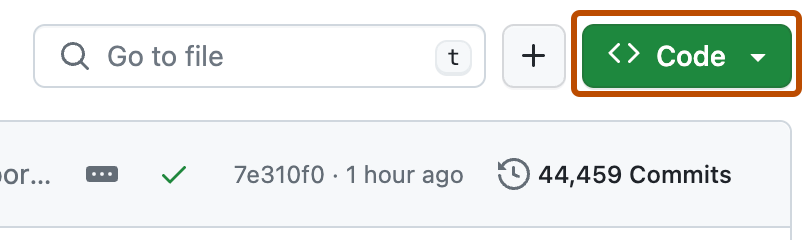
- Select "HTTPS" and click the clipboard button to copy the repo address (If you know how to set up an SSH key, you can use the SSH option. Learn more here).

- Open a command line in the folder where you want to download the code.
- Type
git cloneand paste the URL:
$ git clone https://github.com/ucfcs/Fall2020-Group09.git
- Press Enter and Git should begin cloning the repo.
- On the repo's home page, click the button labeled "Code".
- Click on "Open with GitHub Desktop".
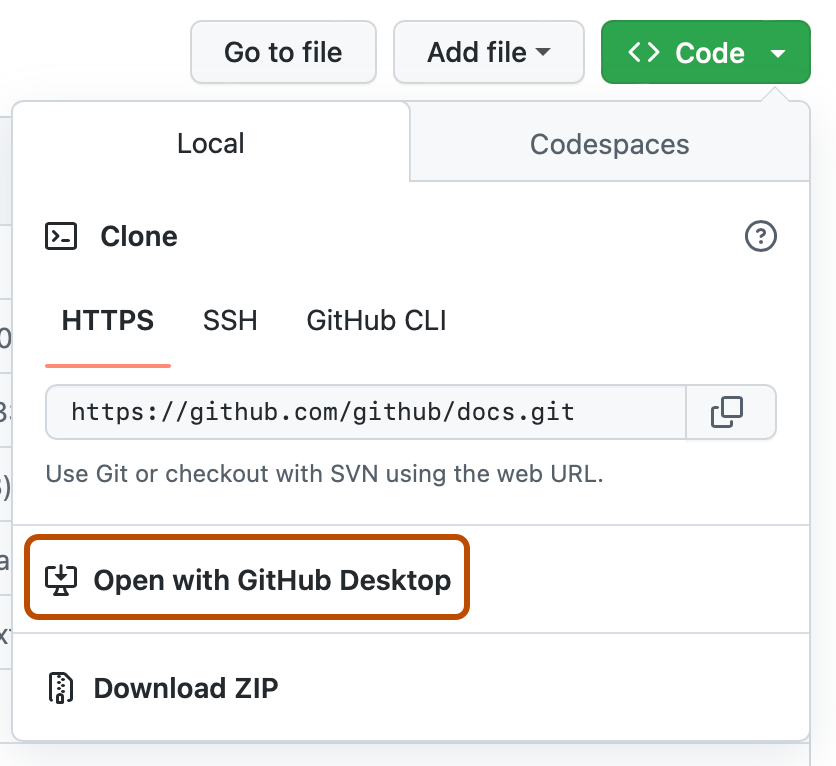
- GitHub Desktop should open and guide you through the process to clone the repo.
This application is written in JavaScript using Node.js, a runtime environment that allows JavaScript code to run as a standalone program outside of a web browser. In order to develop and run the app, you need to install Node.js on your system. The Node.js installer also includes npm (originally short for Node Package Manager) which allows you to easily install third-party packages and dependencies that the app uses.
- Download the Node.js installer from nodejs.org.
- Run the installer. If asked to install npm, select yes.
- To check if node was installed properly, open a command line and type the following commands:
node -vnpm -v
If installation was successful, it should list the installed versions.
Expo is a framework for developing cross-platform mobile applications. Expo can be installed easily using npm by typing npm install --global expo-cli.
You will also want to download the Expo Go app so you can run development versions of the app on your phone. Expo Go is available on the Android Play store and iOS App Store.
For more information, see the Expo docs.
As an extra note: Several team members had some difficulties when they first tried to get the application running. This is one Stack Overflow link that helped a few team members out (npm install error). Essentially, they had to uninstall and re install node.