Using Toon Ramp Masking
Toon Ramp Masking is a feature that allows you to use up to 4 different toon ramps on the same material. This can help cut down on material counts on your character models, freeing up some CPU time.
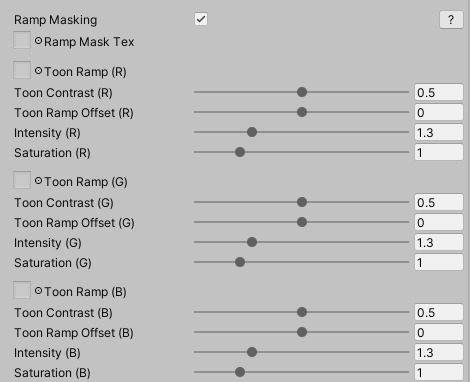
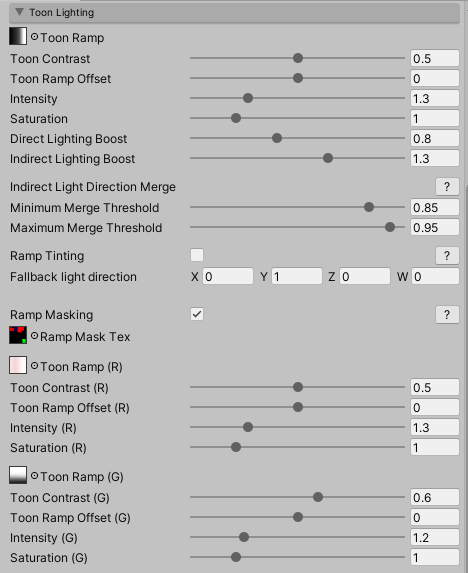
It can be enabled under the Toon Lighting settings like this:
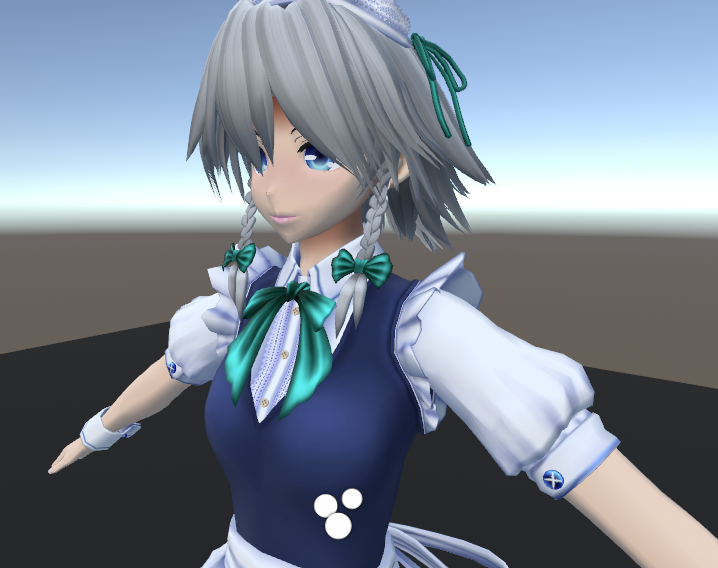
Let's take our example model. A toon ramp suitable for clothing has been applied to the model. Unfortunately this toon ramp doesn't work all too well on the skin.
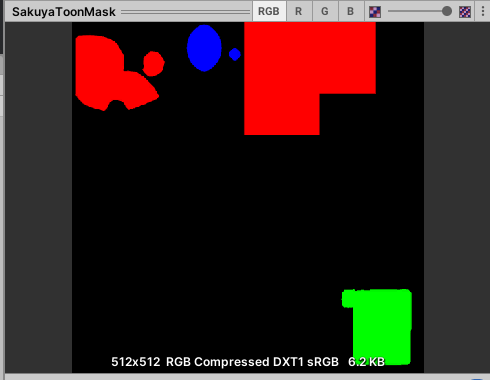
Let's fix this. The first step is to make a suitable mask texture. The best way to do that is to make a copy of the existing albedo texture. If a part of the mesh should use the default toon lighting ramp and settings, turn it entirely black. If a part of the mesh should be different from the rest, give it a unique color, choosing from either red, green or blue. The end result will look something like this:
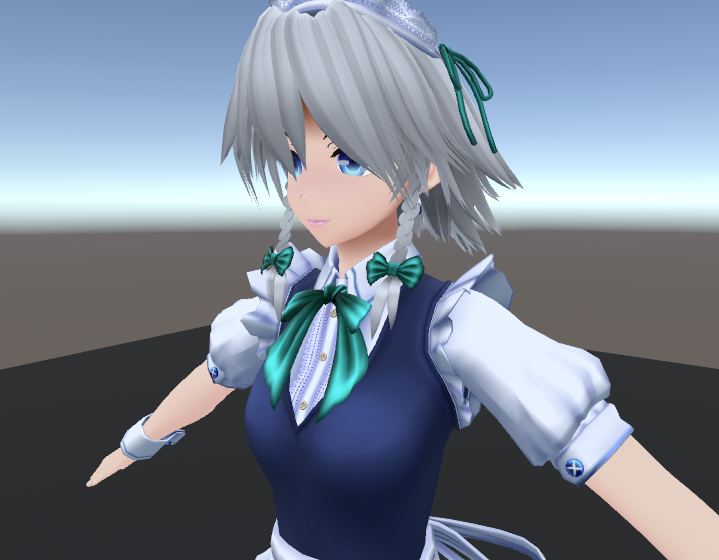
Now populate the red, green and blue areas with different toon ramps and intensity settings as desired. Success! The model now looks like this:
Note: enabling the Toon Ramp Masking feature results in a bit of branching in the shader. While this feature cuts down on drawcalls and improves CPU performance, it results in a little bit more strain on the GPU. The performance impact on the GPU is extremely small on modern GPU's, but mobile platforms might experience problems.