



A custom integration for Home Assistant to connect and poll data directly from Omron Bluetooth Low Energy (BLE) blood pressure monitors.
🐞 Found a bug? Let us know via an Issue.
💡 Have a question or suggestion? Join the Discussion!
| Model | Global Model | Type | Verified |
|---|---|---|---|
| HEM-6232T | BP6350/RS7 Intelli IT | Wrist | ✅ |
| HEM-7142T2 | BP7150/M2 Intelli IT | Upper Arm | ✅ |
| HEM-7151T | BP5250/M3 Comfort | Upper Arm | ✅ |
| HEM-7320T | BP7450/M7 Intelli IT | Upper Arm | ✅ |
| HEM-7322T | BP786/M6 Intelli IT | Upper Arm | ✅ |
| HEM-7343T | BP5450/Platinum Series | Upper Arm | ✅ |
Note
Other Omron BLE devices might work by selecting a similar model during > setup, but have not been formally tested. If your device does not work, please share the debug logs
Omron blood pressure monitors only support one paired device at a time. If you have already paired your monitor with the official Omron Connect smartphone app, you must unpair/forget the device from your phone's Bluetooth settings before connecting it to Home Assistant. Using both simultaneously is not supported by the hardware.
- HACS: Add this repository (
eigger/hass-omron) to HACS as a custom repository, or Manual: Copy thecustom_components/omrondirectory into your Home Assistantcustom_componentsfolder. - Restart Home Assistant.
- It is strongly recommended to use a Bluetooth proxy instead of a built-in Bluetooth adapter.
Bluetooth proxies generally offer more stable connections and better range, especially in environments with multiple BLE devices.
Tip
For hardware recommendations, refer to Great ESP32 Board for an ESPHome Bluetooth Proxy.
-
When using a Bluetooth proxy, it is strongly recommended to keep the scan interval at its default value.
Changing these values may cause issues with Bluetooth data transmission. -
bluetooth_proxy: must always have active: true.
Example (recommended configuration with default values):
esp32_ble_tracker:
  scan_parameters:
    active: true

bluetooth_proxy:
  active: true
Device setup and pairing are done entirely through the Home Assistant UI.
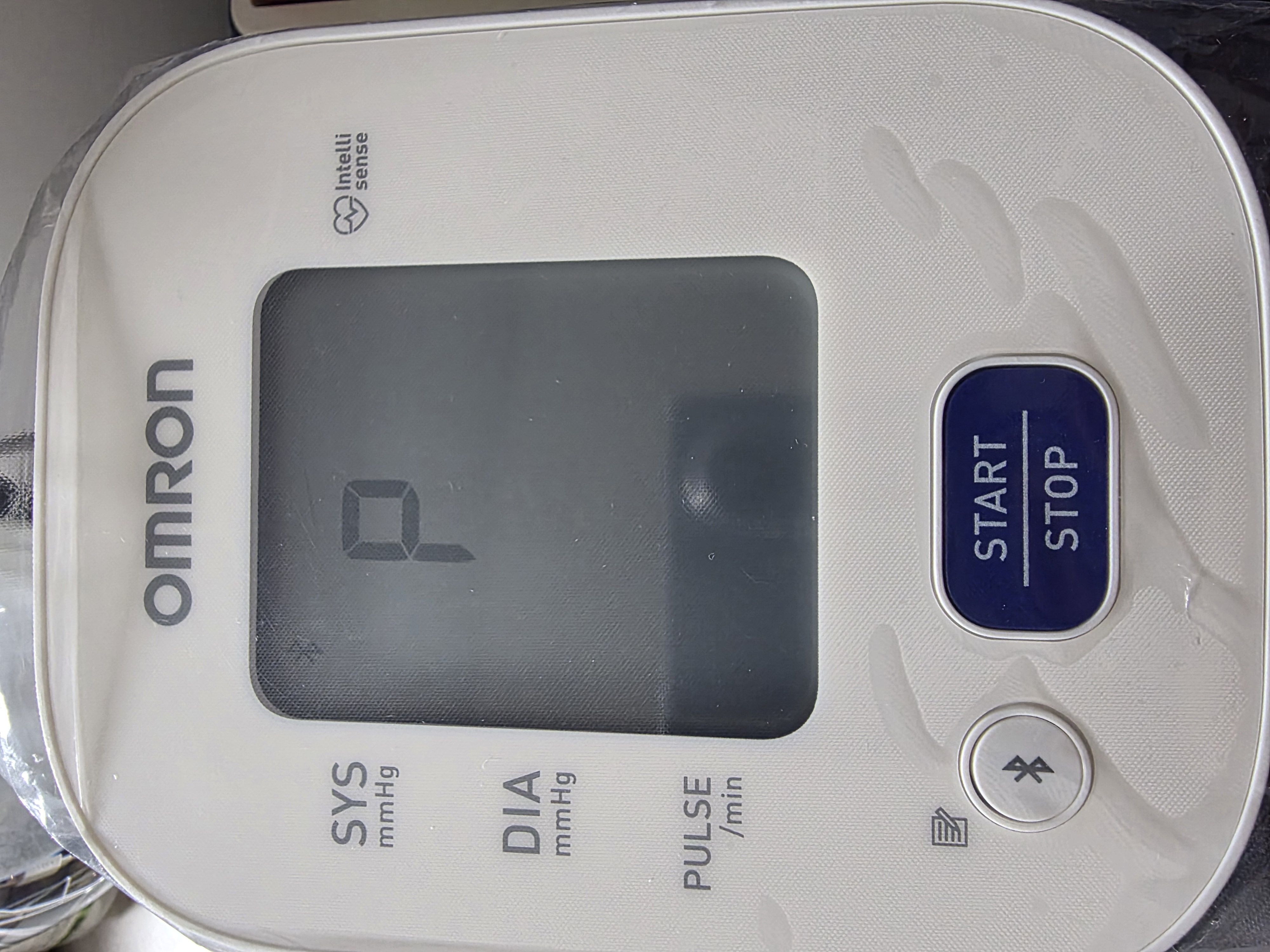
- Enter Pairing Mode:
- On your Omron blood pressure monitor, press and hold the Bluetooth button (or the respective connection button depending on your model) for 3-5 seconds.
- The display should show a blinking
-P-symbol. This means the device is ready to pair.
- Add Integration:
- In Home Assistant, go to Settings > Devices & Services.
- Home Assistant should automatically discover the "Omron" device via Bluetooth. Click Configure.
- If it wasn't auto-discovered, click Add Integration and search for "Omron".
- Select Your Model:
- Select your exact Omron model from the dropdown list.
- Finalize Pairing:
- Make sure
-P-is still blinking on the monitor. - Click Submit in Home Assistant.
- HA will securely perform the pairing sequence (programming its pairing key or performing OS-level bonding).
- The monitor screen will display an
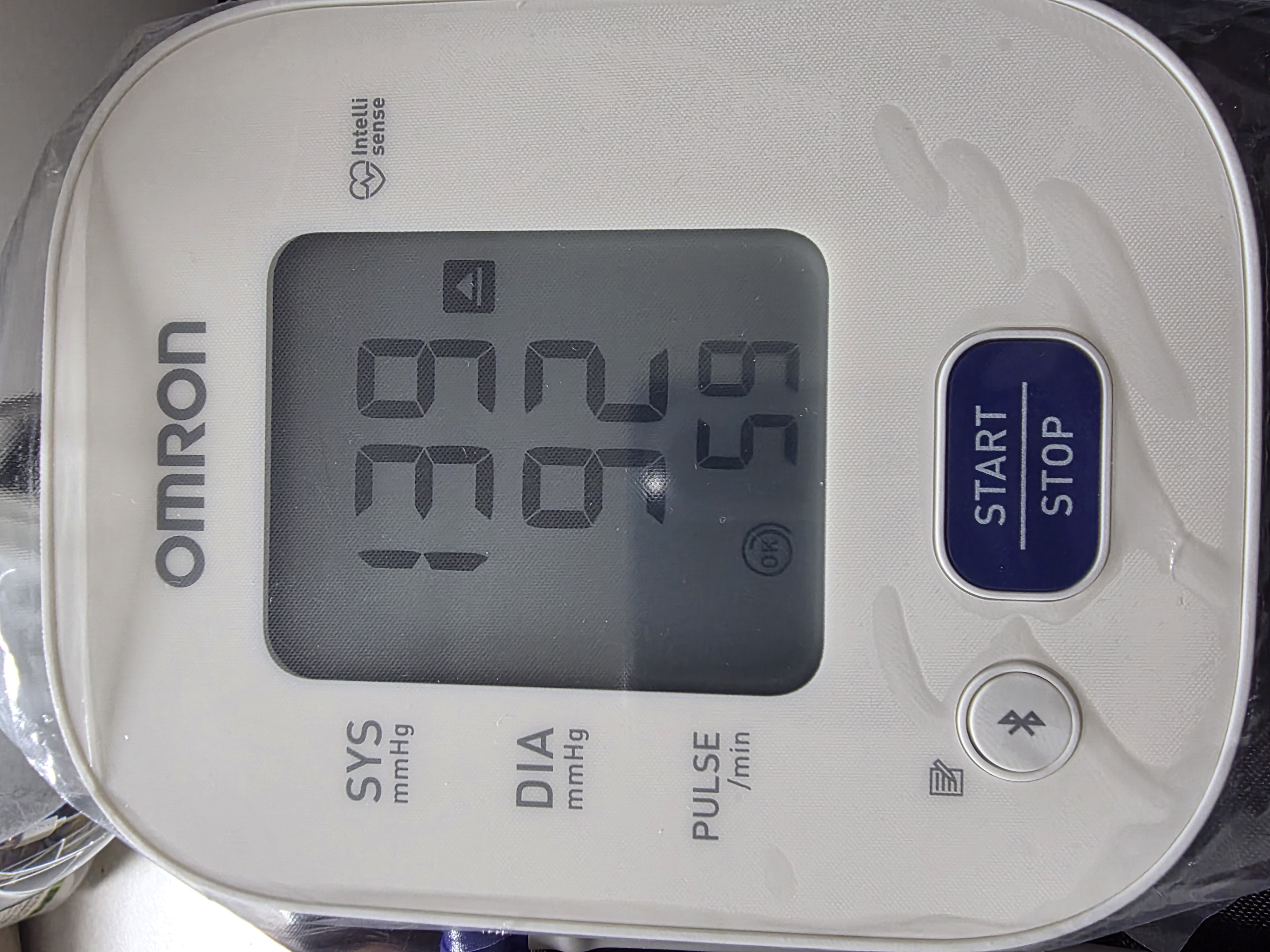
[OK]symbol when successful.
- Make sure
- The integration actively polls the blood pressure monitor in the background.
- Whenever you take a measurement, the device stores it in its internal EEPROM memory.
- As long as the device is in range, Home Assistant will periodically connect via Bluetooth (every 5 minutes by default) and download the latest unread records.
- HA creates automatically updated sensor entities for:
- Systolic Blood Pressure (mmHg)
- Diastolic Blood Pressure (mmHg)
- Heart Rate / Pulse (bpm)
- Pulse Pressure (mmHg)
- Estimated Mean Arterial Pressure (mmHg)
- Shock Index (ratio)
- Rate Pressure Product (mmHg*bpm)
- Blood Pressure Category (ACC/AHA)
- Measurement Timestamp
- RSSI / Signal Strength (diagnostic)
- Last Poll Duration (diagnostic)
- Binary & Diagnostic Sensors (Status from the last measurement):
- Cuff Fit:
Onindicates the cuff was not wrapped correctly (improper fit). - Body Movement:
Onindicates that movement was detected during the measurement. - Irregular Pulse:
Onindicates that an irregular heart rhythm was detected. - Improper Position:
Onindicates the device was not at heart level (wrist models). - Battery:
Onwhen the device's batteries should be replaced. - Connection:
Onwhile Home Assistant is actively communicating with the monitor.
- Cuff Fit:
The Blood Pressure Category sensor classifies readings according to the ACC/AHA 2017 Guidelines. If a measurement's systolic and diastolic values fall into different categories, the higher (more severe) category is assigned.
| Category | Systolic (mmHg) | Diastolic (mmHg) | |
|---|---|---|---|
| Normal | < 120 | and | < 80 |
| Elevated | 120 – 129 | and | < 80 |
| Hypertension Stage 1 | 130 – 139 | or | 80 – 89 |
| Hypertension Stage 2 | ≥ 140 | or | ≥ 90 |
| Hypertensive Crisis | > 180 | or | > 120 |
- Each integration entry exposes a Text entity (Device nickname) under Configuration for a free-form note. It does not change the Device Registry name, entity IDs, or integration options; Home Assistant restores the last value like other restore-state entities.
- Some Omron models store two (or more) user profiles on the cuff. After you choose such a model, the setup flow asks for a display name per profile (defaults:
user1,user2, …). Those names are used in sensor labels and in the internal sensor key (slug), so they replace the old_user1/_user2-style suffix inentity_ids when you customize them. - Single-user models do not show this step.
- Changing a name later under Configure re-creates sensors for that profile slot (new
entity_id, new long-term statistics for those entities). - Last value after restart: non-diagnostic measurement sensors restore their last recorded state from Home Assistant so they can show the previous reading when the cuff is off or not yet polled. The Connection binary sensor still reflects whether a poll connection is active. Stale readings are possible if the device has not synced—use the connection sensor and timestamps as context.
Pairing failed: Could not enter key programming mode: Make sure the device is actively showing the blinking-P-before clicking Submit. If it timed out and turned off, hold the button on the device to trigger-P-again.Connection terminated by peer: BLE interference or weak signal. Try moving the device closer to your Home Assistant Bluetooth adapter or use a USB extension cable for your BLE dongle.- Sensor values not updating: The device turns off its Bluetooth radio to save battery. It turns on briefly after a measurement. Ensure you have taken a new measurement after pairing to test the sync.
- Data doesn't show up after changing batteries: Changing batteries may reset the internal clock on the device. Re-pairing or syncing time (via the app, then re-pairing to HA) might be necessary on older models.