 |
|
 |
|
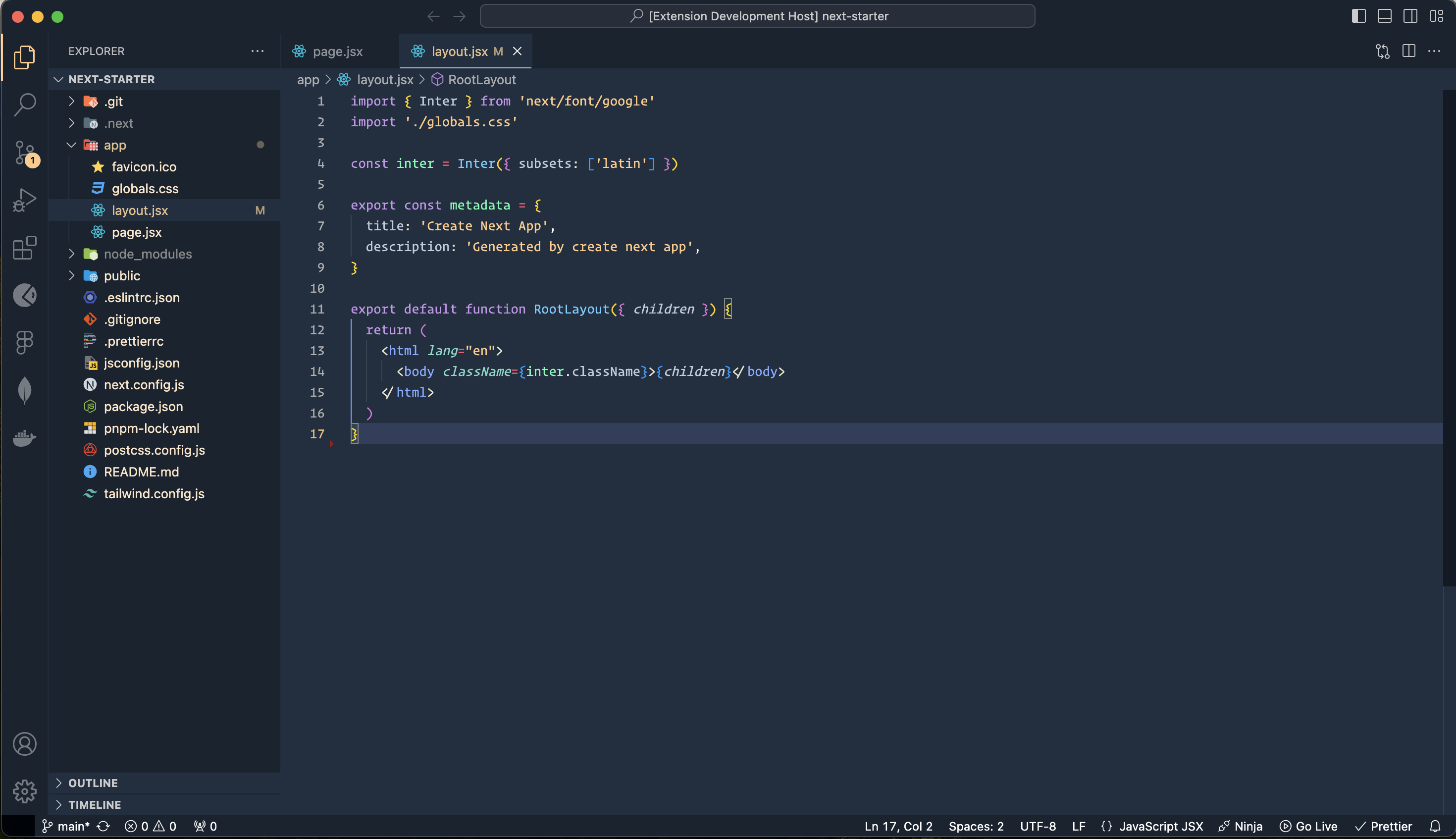 |
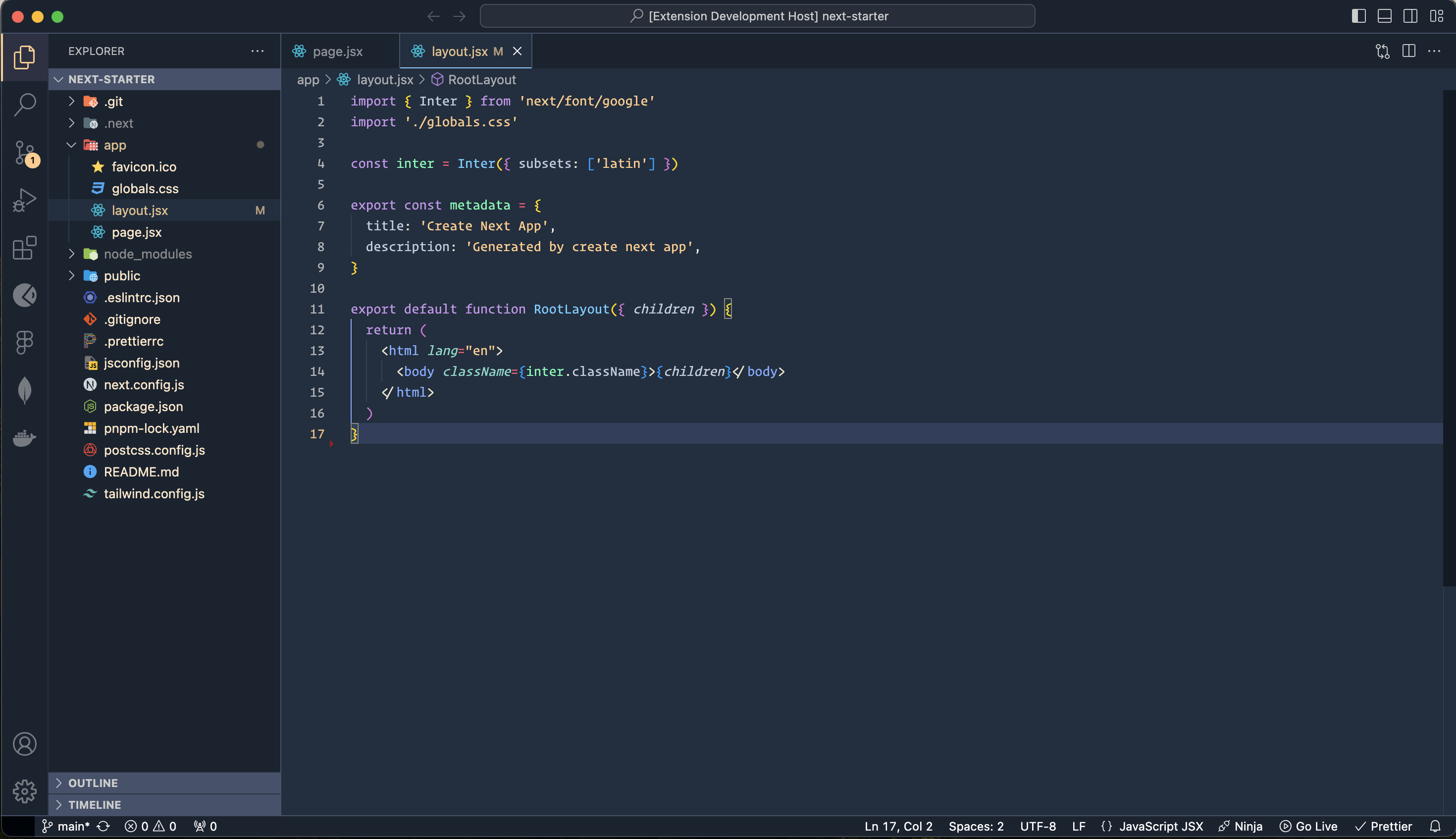
|
- Visit the VS Marketplace.
- Click on the "Install" button.
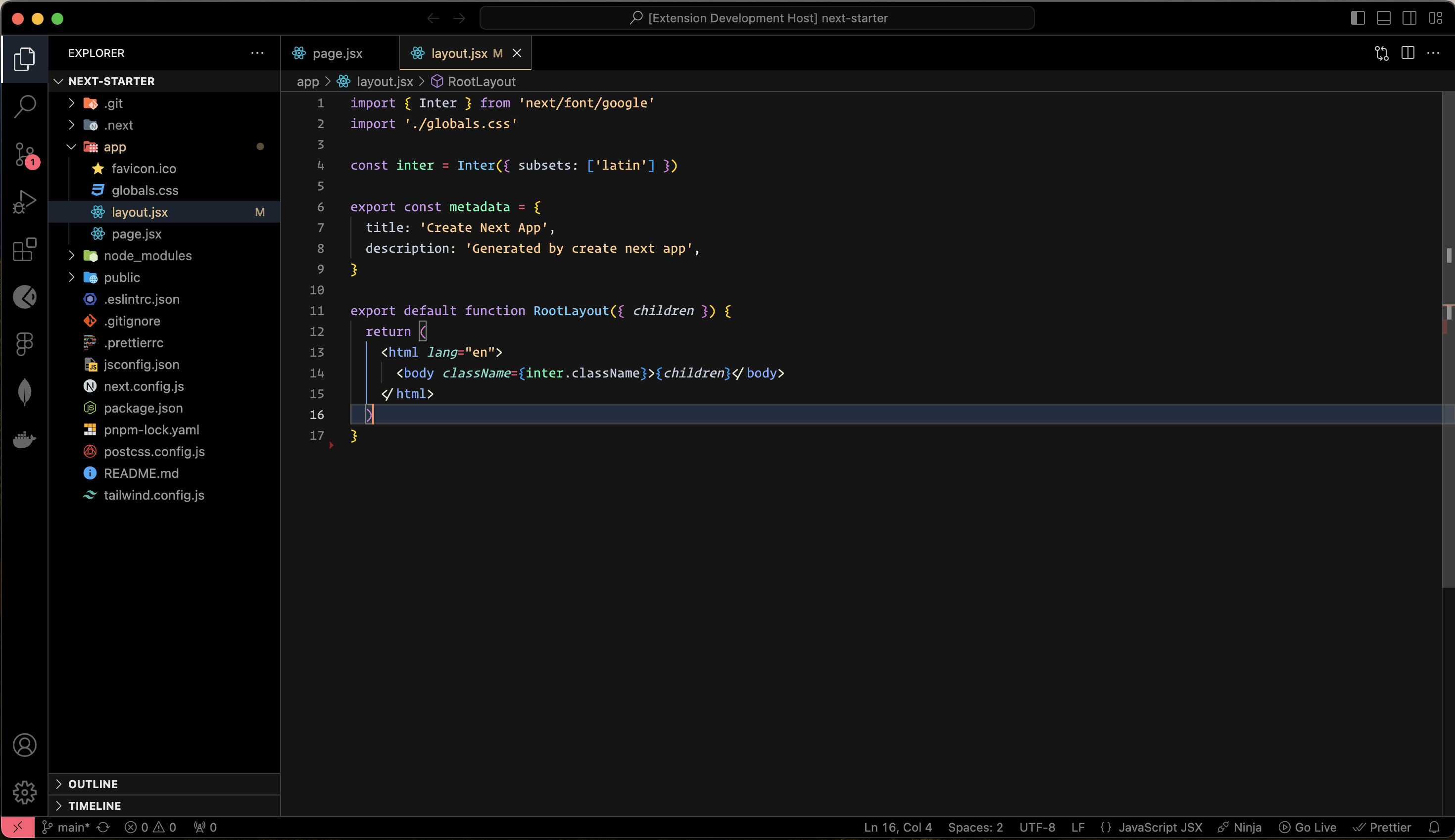
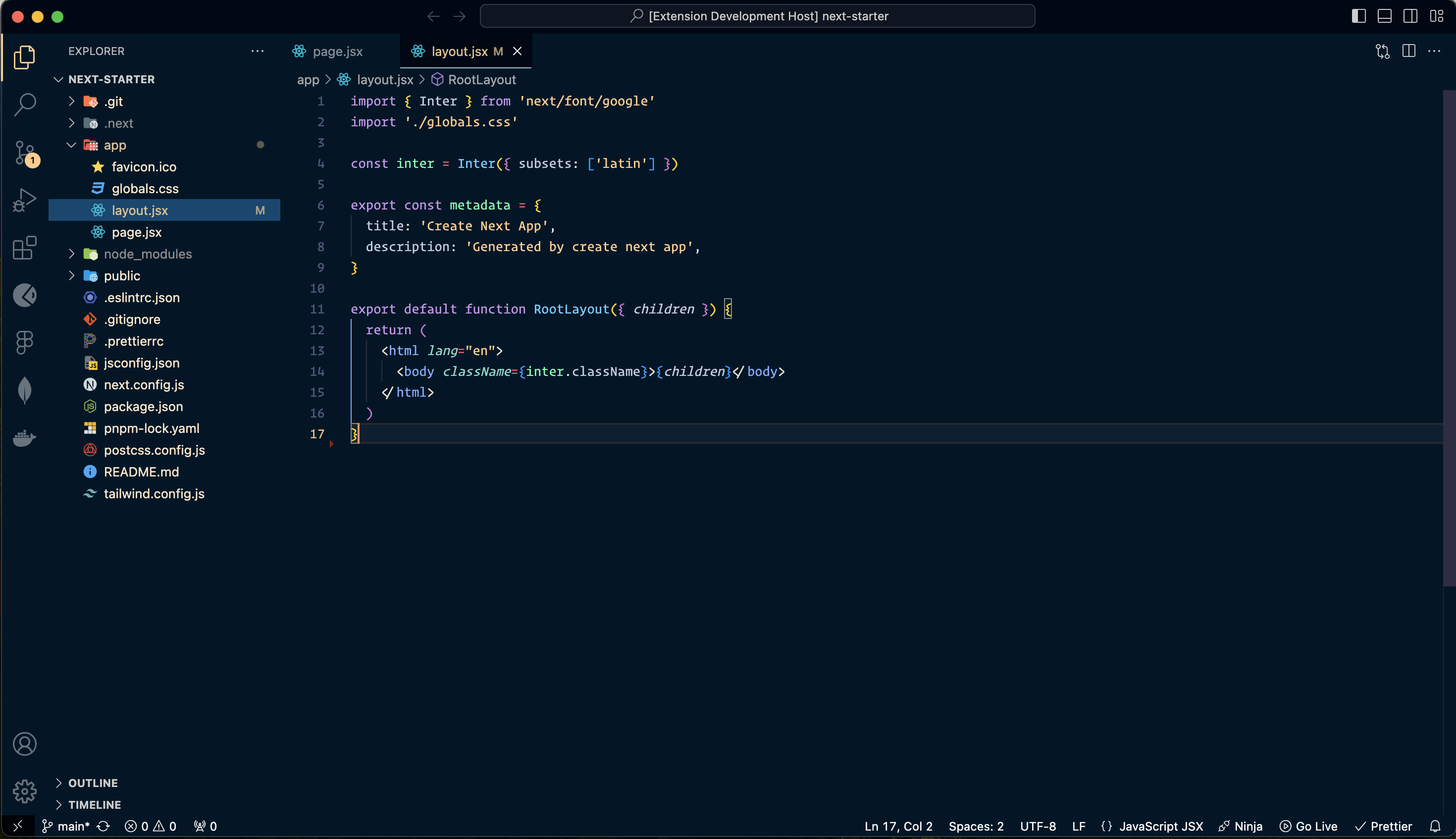
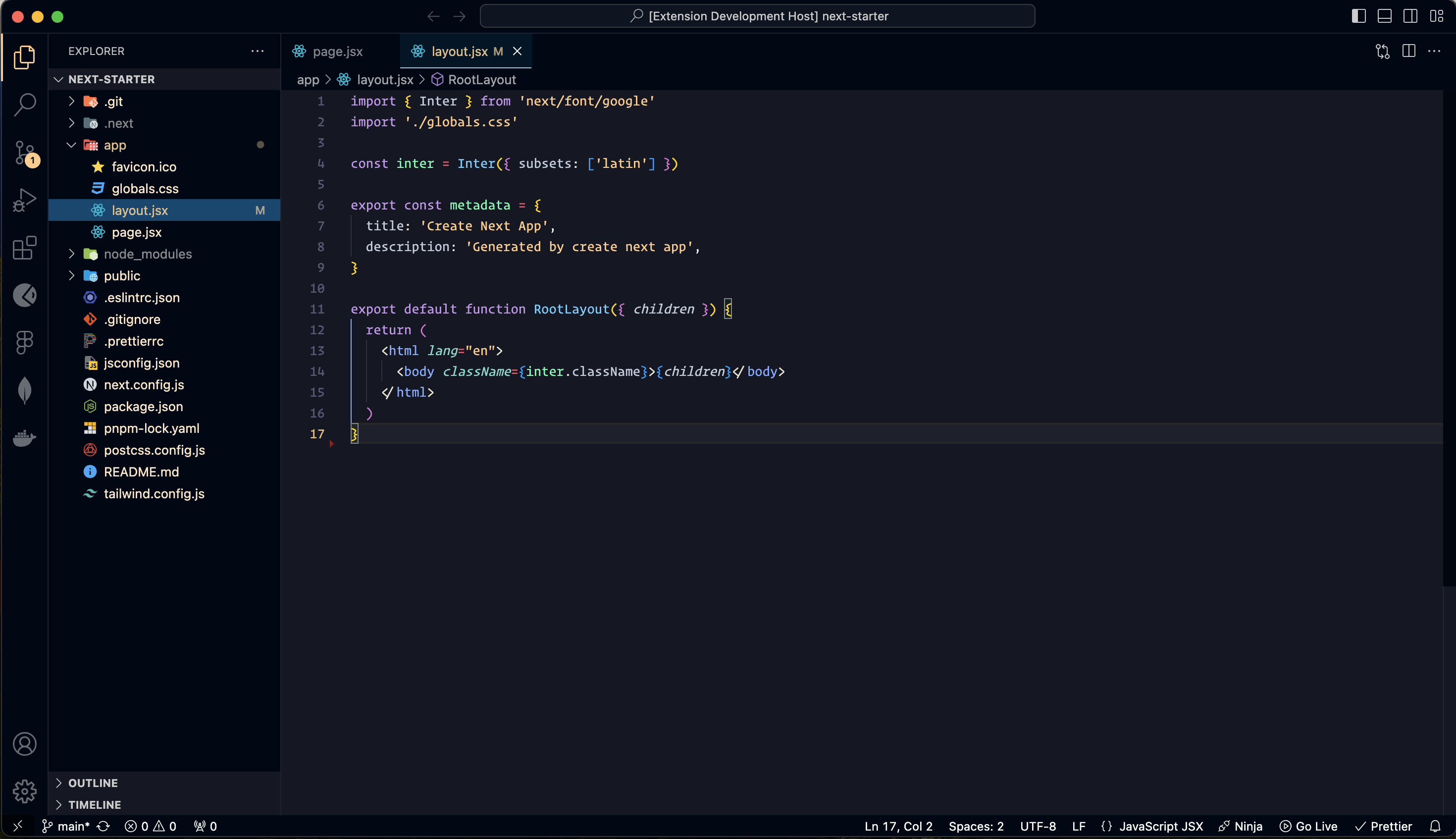
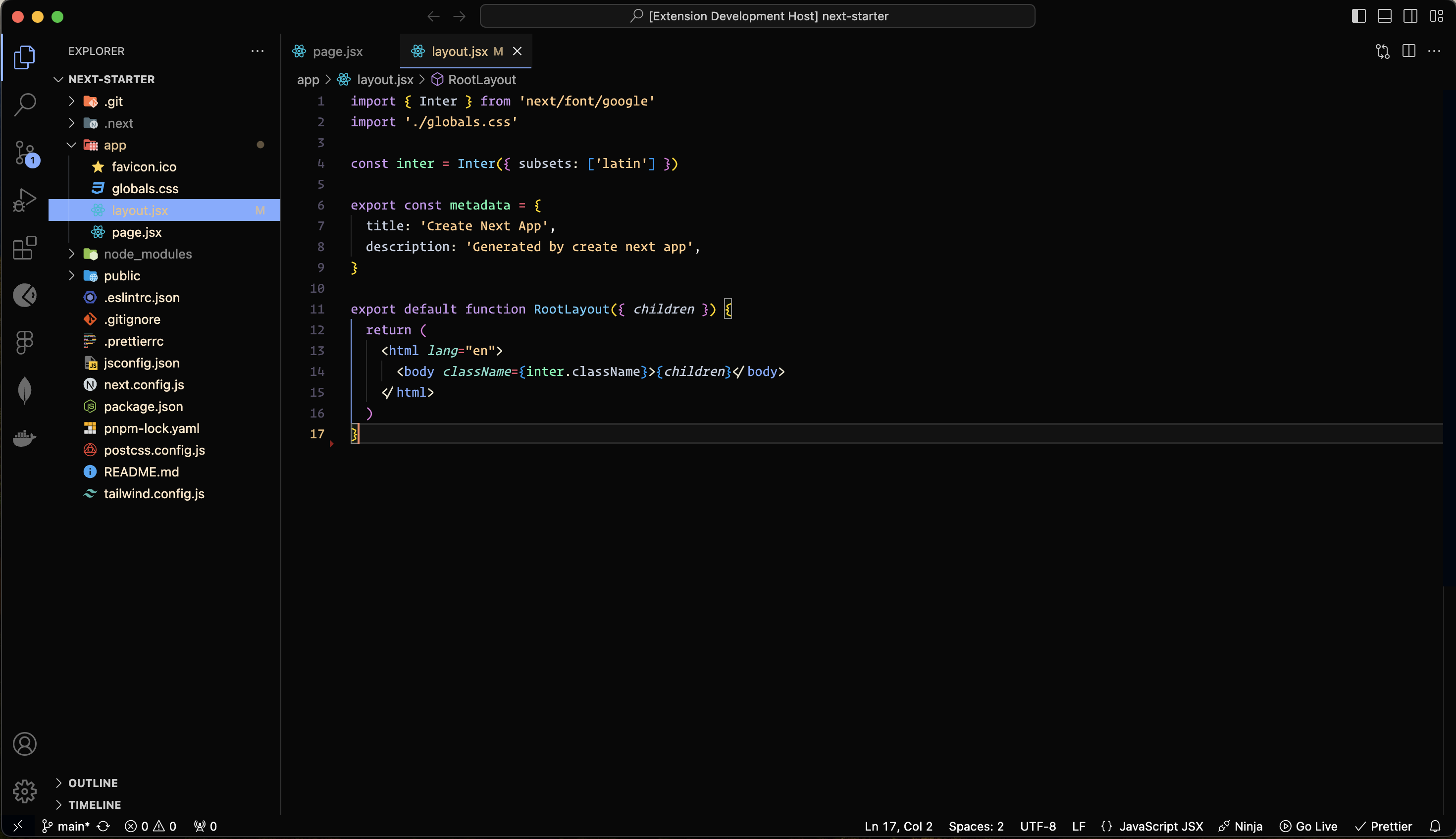
- Then select a theme.The GitHub themes aim to align with the themes available in github.com's settings:
DarkAlchemy - DefaultDarkAlchemy - BlueDarkAlchemy - Midnight✨ new ✨DarkAlchemy - Black✨ new ✨DarkAlchemy - ArcticDarkAlchemy - Arctic-Ruled✨ new ✨
To customize this theme (or any other) in your personal config file, refer to the guide in the color theme documentation. This is useful for making small adjustments to the theme without forking and managing your separate theme.
Note: PR for only current themes as of now.
- Clone this repo in VS Code.
- To access the "darkalchemy" folder, either navigate through the file explorer manually or execute the command
code darkalchemyin the Command Line Interface (CLI). - Press
F5to open a new window with your extension loaded - Navigate to
Code > Preferences > Color Themeor use shortcuts (⌘k ⌘ton Mac orCtrl+k Ctrl+ton Windows) and select the "Darkalchemy ..." theme for testing. - Make desired changes to the themes file.
- UI: For alterations to the "outer UI" such as the status bar, file navigation, etc., refer to the Theme Color reference.
- Syntax: For modifications to code highlighting, inspect the syntax scopes by invoking the Developer: Inspect Editor Tokens and Scopes command from the Command Palette (
Ctrl+Shift+PorCmd+Shift+Pon Mac) in the Extension Development Host window.
- Once you're happy, commit your changes and open a Pull Request (PR).
Enjoy exploring the Dark Alchemy Themes!