Source code for displaying Bad Apple on Roblox Terrain. Includes terrain data generation in Index.js and display in src/Server/VideoDisplay.server.luau
Check out this demo video:
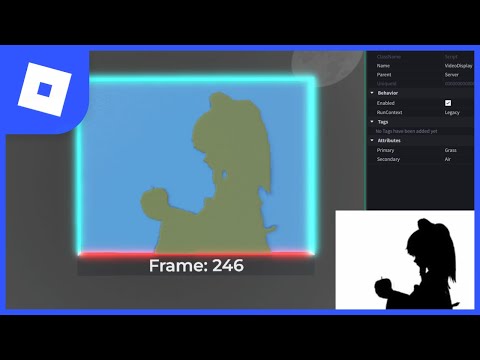
Follow the steps below to run/recreate the project:
Tip
You can skip the frame conversion and generate Terrain Data straight from the Video file. I chose not to do so because it overcomplicated the tasks I was achieving.
Warning
Frames are split into seperate module scripts to avoid crashing while syncing the project with Rojo. Additionally, 192x144 are the largest video dimensions tested. Larger frame dimensions may crash the project.
-
Clone the Repository
git clone https://github.com/MarsSquirrel/bad-apple.git
-
Install Node Packages
npm install
-
Convert Video to Frames
ffmpeg -i Video.mp4 -vf "scale=192:144" ./Frames/frame_%04d.pngLearn more about ffmpeg installation at https://www.ffmpeg.org/
- Run Terrain Data Generator
node index.jsIf necessary, configure Frame input and Output paths in Index.js
const FrameDirectory = "./Frames"; // Video Frames
const OutputDirectory = "./src/Shared/Frames"; // Terrain Data- Connect Rojo & Run Game
rojo serveLearn more about Rojo installation at https://rojo.space/
Caution
Studio playtesting is the only recommended method of observation. Due to networking & memory constraints, I do not recommend playing the experience through the Roblox player.
If desired, you can modify additional variables to alter the viewing experience:
local FPS = 30 -- Video FPS
local WIDTH = 192 -- Video Width
local HEIGHT = 144 -- Video Height
local VOXEL_SIZE = 4 -- Size of Terrain Voxels
local HEIGHT_OFFSET = -20 -- Offset of Terrain