(Click to watch)
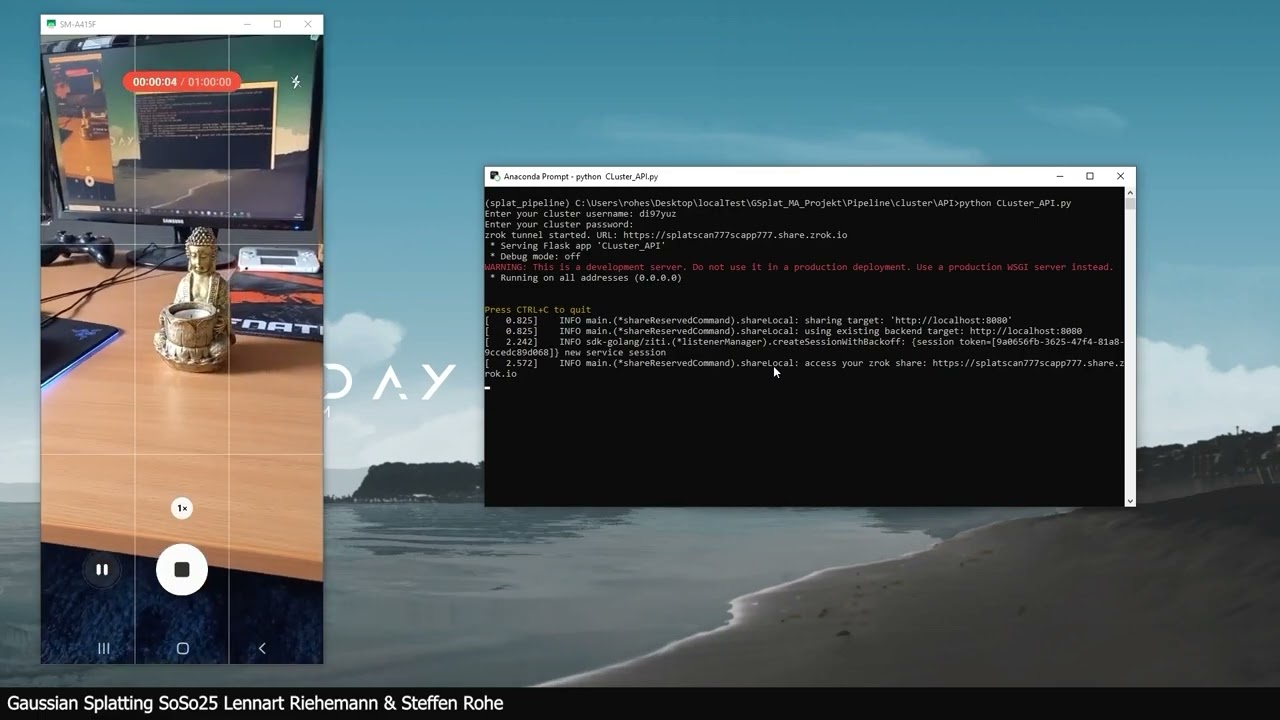
This Repository contains a Colmap and Nerfstudio based Gaussian Splatting 3D reconstruction pipeline designed for efficient and high-quality 3D scene modeling from video or images. The project includes a complete processing pipeline that runs on the LRZ AI cluster or locally with NVIDIA GPUs, and features an Android app (SplatScan) to capture videos, set parameters, and upload data seamlessly for 3D reconstruction.
The pipeline supports multiple input types (video, images, COLMAP data) and outputs high-fidelity 3D models (.ply files) using a modular, configurable workflow optimized for GPU acceleration.
To Work with LRZ AI Sytems you need to have cluster access. https://doku.lrz.de/3-access-and-getting-started-10746642.html
You also need eduVPN and a connection with "Münchner Wissenschaftsnetz LRZ-VPN".
git clone https://github.com/Kiwil23/GSplat_MA_Projekt.git
cd GSplat_MA_ProjektCreate and activate the environment:
conda env create -f environment.yml
conda activate splat_pipeline- Install zrok
- Create an account:
zrok invite- Enable your account:
zrok enable <your_token>- Reserve a subdomain:
zrok reserve public localhost:8080 --unique-name <"your_subdomain_name">- You can release a reservation with:
zrok release <your_subdomain_name>- Edit the file:
Pipeline/cluster/splat_workspace/gpu_job.sbatch
USER_PATH → your cluster home directory- Copy
Pipeline/cluster/splat_workspaceto your cluster home directory. You may need to runsed -i 's/\r$//' gpu_job.sbatchfirst - Remove
.gitkeepfiles from:
input_data/
result_data/
- Connect and create enroot container:
ssh login.ai.lrz.de -l your_username
cd splat_workspace
salloc -p lrz-hgx-h100-94x4 --gres=gpu:1
srun enroot import docker://kiwil23/splat_tools_slim
exit- Rename the image:
mv kiwil23+splat_tools_slim.sqsh kiwil23_splat_tools_slim.sqsh- Enable USB Debugging on your device.
- Install Android Studio and open:
SplatScan/
- Run the app on your device.
- Install Docker and NVIDIA Container Toolkit
- Pull the Docker image:
docker pull kiwil23/splat_tools_slim:latestOr build from source:
GSplat_MA_Projekt/Docker_Splat_Tools- Edit:
Pipeline/local/splat_workspace/local_job.sh
USER_PATH → your project save pathYou may need to change line endings from CRLF to LF
- Remove
.gitkeepfiles from:
input_data/
result_data/
Ensure you have Node.js 18 or later installed and follow these steps:
cd GSplat_MA_Projektgit clone https://github.com/Deldood/superSplatViewer.gitcd superSplatViewergit submodule update --initnpm install
-
In your Conda Env Start the API
- For cluster use:
cd Pipeline/cluster/API
python Cluster_API.py --url-name <Your_Zrok_Subdomain_Name> --cluster-path <Cluster_Home_Path>
- For local use:
cd Pipeline/local/API
python Local_API.py --url-name <Your_Zrok_Subdomain_Name>
- For cluster use:
-
Launch the SplatScan App
- Tap
SET URLand enter your zrok subdomain name.
- Tap
-
Capture Video
- Tap
START SCANNINGto record your object. - Try to capture as many angles as possible and ensure good lighting and focus.
- Tap
-
Set Training Parameters
TapSET PARAMETERSto define training options (default:100,100,100,10000):Option Description --pre_filter_img="30"Keep top 30% sharpest images (plus 5% extra automatic filtering) --post_filter_img="60"Keep top 60% after RAFT filtering --train_img_percentage="90"Use 90% of the remaining images for training --train_iters=XXXXNumber of training iterations -
Upload and Wait
- Tap
GENERATE SPLATand wait for training to finish. - The result
.plyfile will be available in:/splat_workspace/result_data
- Tap
In gpu_job.sbatch or ,local_job.sh set the desired --pipeline_type and settings:
| Argument | Result |
|---|---|
--pipeline_type="mp4_to_images" |
Extracted frames |
--pipeline_type="mp4_to_colmap" |
COLMAP data |
--pipeline_type="mp4_to_transforms" |
Prepared train data for Splatfacto |
--pipeline_type="mp4_to_splat" |
(Default) Full pipeline with .ply output |
| Argument | Result |
|---|---|
--pipeline_type="images_to_colmap" |
COLMAP data |
--pipeline_type="images_to_transforms" |
Prepared train data for Splatfacto |
--pipeline_type="images_to_splat" |
Full pipeline with .ply output |
Required Structure:
input_data/
├── images/
├── sparse/
|   └── 0,1,2...
└── database.db
| Argument | Description |
|---|---|
--pipeline_type="colmap_to_transforms" |
Prepared train data for Splatfacto |
--pipeline_type="colmap_to_splat" |
Full pipeline with .ply output |
Required Structure:
input_data/
├── colmap/
│   ├── sparse/
│   └── database.db
├── images/
├── images_2/
├── images_4/
├── images_8/
├── sparse_pc/
└── transforms.json
| Argument | Result |
|---|---|
--pipeline_type="transforms_to_splat" |
Full pipeline with .ply output |
| Option | Description |
|---|---|
--pre_filter_img="30" |
e.g. Keep top 30% sharpest images (plus 5% extra filtering) |
--post_filter_img="60" |
e.g. Keep top 60% after RAFT filtering |
--train_img_percentage="90" |
e.g. Use 90% of remaining images for training |
--train_iters=XXXX |
e.g. Number of training iterations |
sbatch gpu_job.sbatch or ./local_job.shIssue:
sbatch: error: Batch script contains DOS line breaks (\r\n)
sbatch: error: instead of expected UNIX line breaks (\n).
Fix:
sed -i 's/\r$//' gpu_job.sbatch
sbatch gpu_job.sbatch
Access the LRZ Cluster Dashboard: 👉 https://ood-1.ai.lrz.de/pun/sys/dashboard