
This monorepo contains the repositories for Khoury Odyssey's NextJS-powered frontend (in /frontend) and Strapi-powered CMS backend (in /backend).
See each subdirectory's README for additional information.
Odyssey is a new platform designed to provide on-demand access to modern knowledge and skills pertinent to today’s undergraduate Khoury students.
Production: The frontend and backend are both deployed through AWS ECS using Terraform to assemble all necessary aspects. The frontend and backend are each deployed in a separate service. The database is deployed through AWS RDS. Media is stored in AWS S3.
Development: The frontend and backend are both deployed through AWS ECS. Each is deployed in a separate service. The database is deployed through AWS RDS. Media is stored in AWS S3.
To install and run Odyssey locally, follow these steps:
Make sure to have the following technologies installed before proceeding.
- Git → Installation
- Node.js → Installation
- npm → Installation
- Docker → Installation
Navigate to the Odyssey Github repository here
The develop branch of the repository contains the most up-to-date code that will eventually be merged into the main branch, so clone from that branch using the following command:
git clone -b develop https://github.com/KhourySpecialProjects/odyssey.git
For the separate containers to be able to communicate with each other, some environment variables need to be set
Before we do that, in a terminal in the top level repository run
npm run setupThis will install all of the local dependencies in you local version so that when you edit files you won’t be given import errors
Open the cloned repository in your IDE of choice (Most common is VSCode)
Navigate to .env.example and change the filename to .env
fill in the database section with the following, replacing <dbname>, <user>, and <password> with anything you see fit. In my local development, I set <dbname> as strapi and <user> as strapi_user.
HOST=0.0.0.0
PORT=1337
APP_KEYS=
API_TOKEN_SALT=
ADMIN_JWT_SECRET=
TRANSFER_TOKEN_SALT=

#AWS Object Storage
AWS_CDN_URL=
AWS_CDN_ROOT_PATH=
AWS_S3_ACCESS_KEY=
AWS_S3_SECRET_KEY=
AWS_S3_REGION=
AWS_S3_ENDPOINT=
AWS_S3_BUCKET=

#Database
DATABASE_CLIENT=postgres
DATABASE_HOST=127.0.0.1
DATABASE_PORT=5432
DATABASE_NAME=<dbname>
DATABASE_USERNAME=<user>
DATABASE_PASSWORD=<password>
DATABASE_SSL=false
For the environment variables not set, request them from another team member.
Navigate to .docker.env.example and create a copy of the file. Name it .docker.env
#Database
DATABASE_HOST=strapiDB
DATABASE_NAME=<YOU_CHOOSE>
DATABASE_USERNAME=<YOU_CHOOSE>
DATABASE_PASSWORD=<YOU_CHOOSE>

POSTGRES_USER=${DATABASE_USERNAME}
POSTGRES_PASSWORD=${DATABASE_PASSWORD}
POSTGRES_DB=${DATABASE_NAME}
Where you see <YOU_CHOOSE>, set whatever values you see fit. For simplicity, I set them to the values corresponding to <dbname>, <user>, and <password> from the previous step.
The reason we set these twice is that the environment variables in .docker.env are meant to overwrite the environment variables set in .env.
We specifically need DATABASE_HOST to be strapiDB and all of the variables beginning with POSTGRES to be set to the same values as we set to the variables beginning with DATABASE for docker compose to containerize the application correctly
Navigate to the frontend directory
Navigate to the .env.example file and rename it to .env.local
The file should look roughly like this:
AZURE_AD_CLIENT_ID=
AZURE_AD_CLIENT_SECRET=
AZURE_AD_TENANT_ID=
GITHUB_CLIENT_ID=
GITHUB_CLIENT_SECRET=
NEXTAUTH_SECRET=

APP_URL=
DO_CDN_URL=

NEXT_PUBLIC_POSTHOG_KEY=
NEXT_PUBLIC_POSTHOG_HOST=
NEXT_PUBLIC_APP_ENV=local

STRAPI_API_URL=http://localhost:1337
STRAPI_ACCESS_TOKEN=

AWS_CDN_URL=
AWS_S3_BUCKET_NAME=
AWS_S3_BUCKET_ROOT=
AWS_S3_BUCKET_REGION=
AWS_ACCESS_KEY_ID=
AWS_SECRET_ACCESS_KEY=
AWS_S3_BUCKET_URL=
Request all other fields from a team member, leaving STRAPI_ACCESS_TOKEN
Like before, these fields are sensitive as they connect to the same services as our production version does, so it is important not to store these anywhere except in your local development environment.
Now navigate to the .docker.env.example in the same frontend directory and rename it to .docker.env
Leave this file unchanged for now, we’ll generate the API key in Step 5
There are two options: using data from the development server or starting from scratch.
Before getting the production data, we need to make sure that you’ll be allowed to sign into Strapi on your local development. To ensure this, have a current team member sign you up through dev2.data.khouryodyssey.org.
Once you are signed up through strapi. Request for a current team member to send you the SQL startup file (it should be named data.sql). When the docker containers are started for the first time, the database will be populated with the current data in the development server through the commands in the data.sql file.
If you want to know how/why this works, simply ask a team member. (Hint: it has something to do with the pg_dump command in posgresql).
If you’re starting from scratch, come back to this after Step 6.
Once your application is running, navigate to localhost:1337
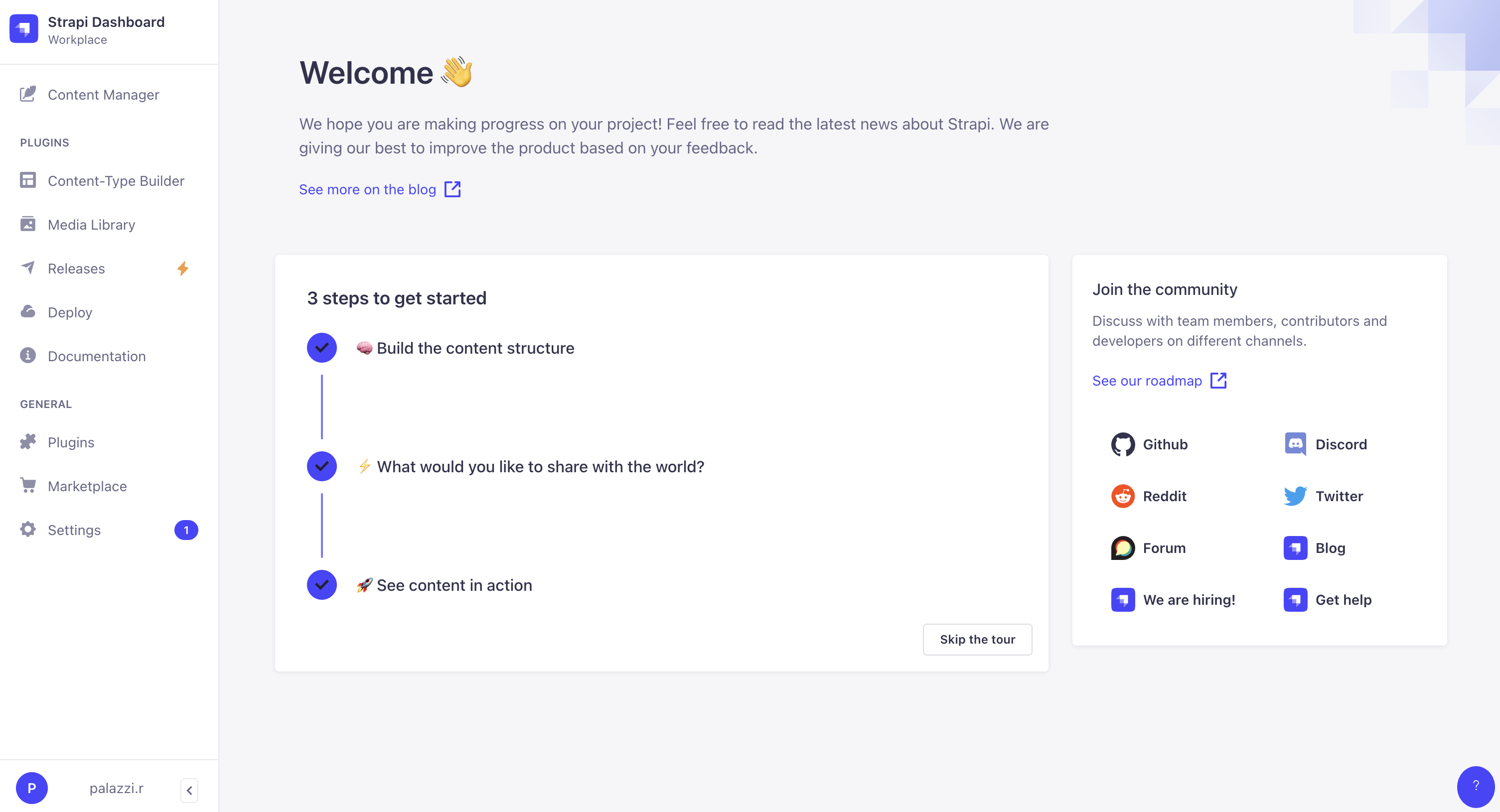
Click “Content Manager” in the top left of the screen
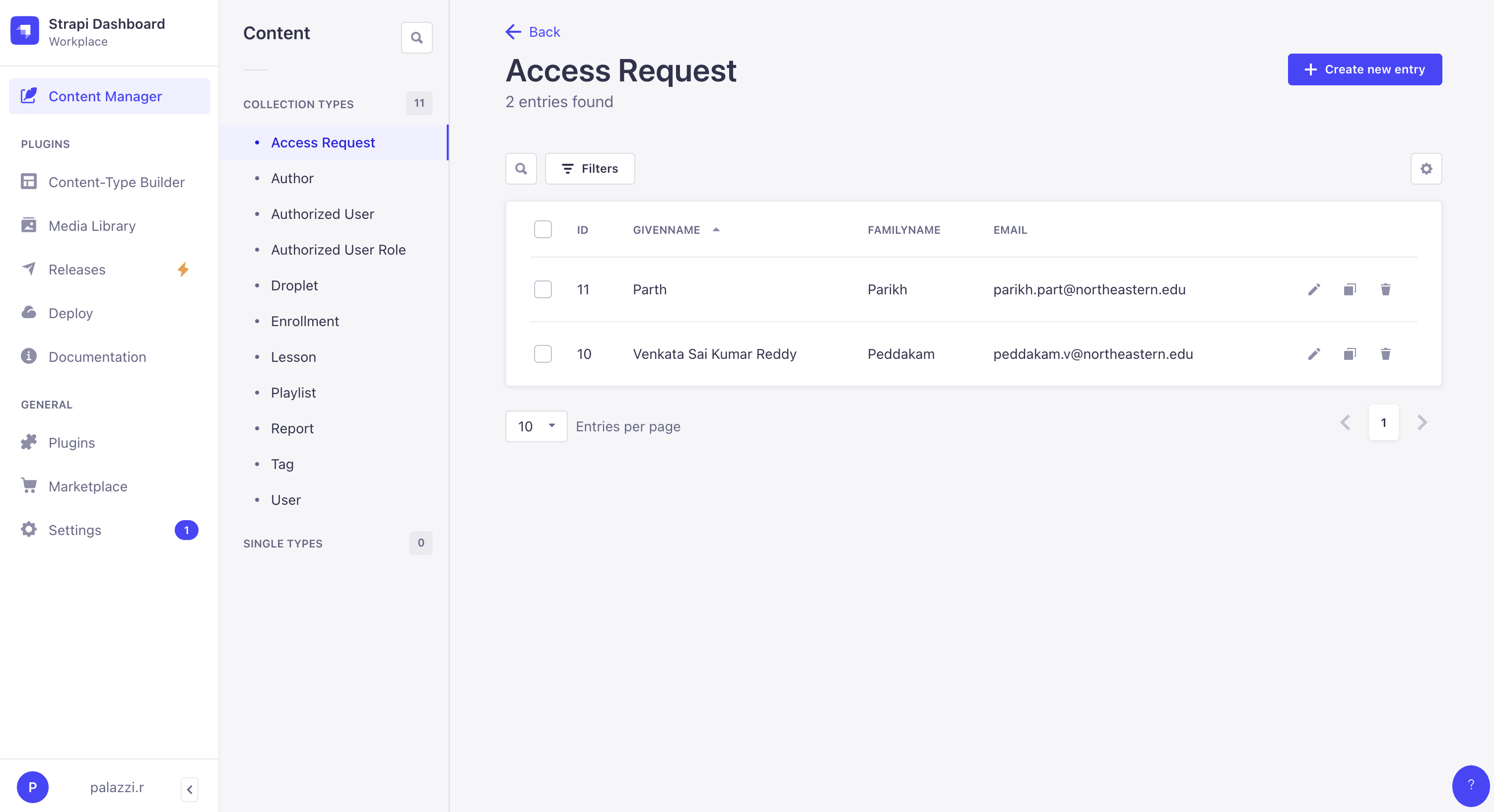
Click “Authorized User Role” under “Collection Types”
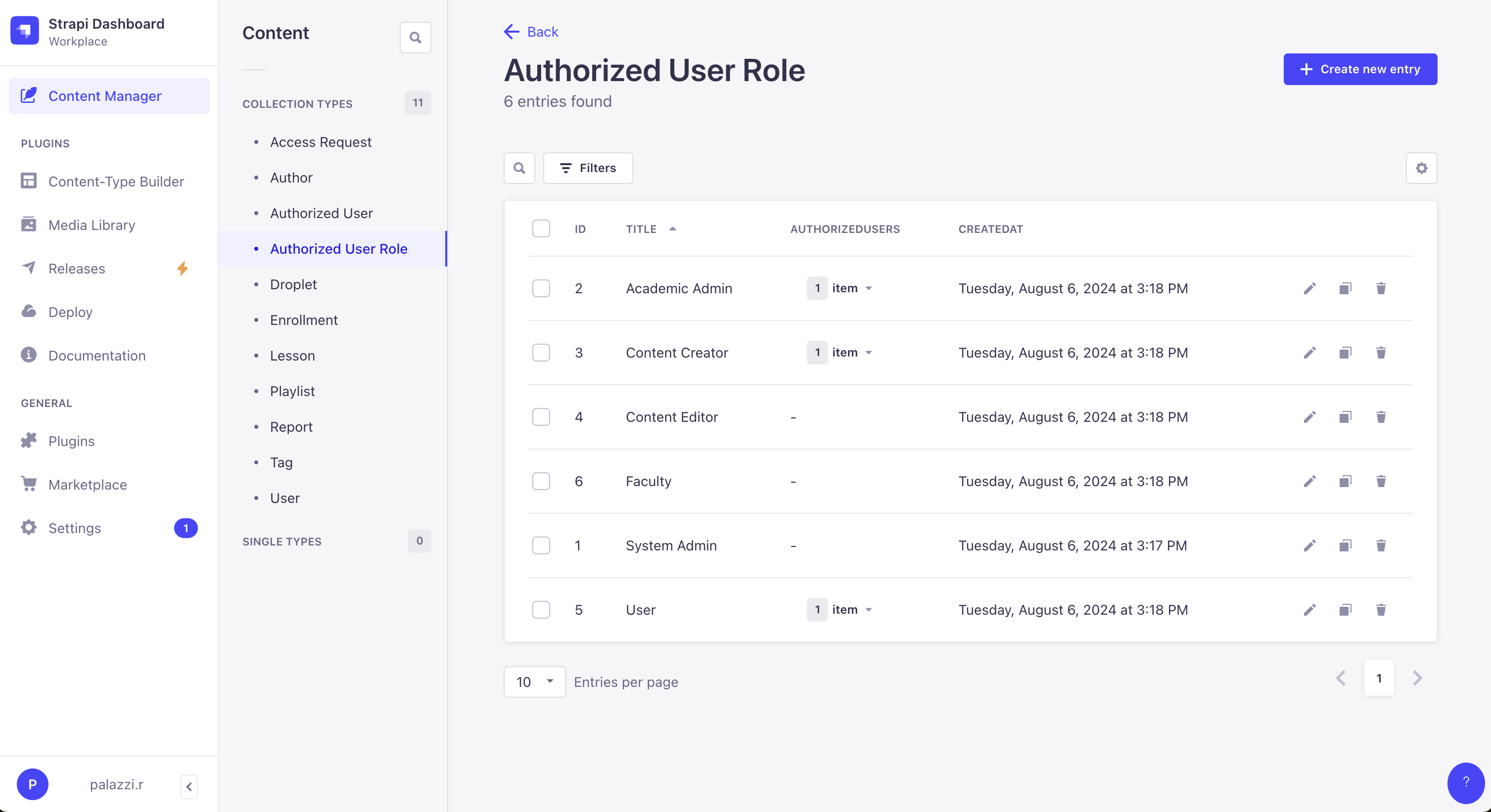
Add the following roles exactly as they read in the screenshot. Any typos when doing this will result in a very frustrating development experience later on.
If you haven’t already done this, also add yourself (your northeastern email) as an Authorized User, similar to how you just created all of the roles. Assign yourself whatever roles you want (I assigned myself all the roles just for testing purposes).
Before we can run the whole application, we need to get an API key from Strapi so that the frontend can communicate with the backend
Navigate to the odyssey directory in your terminal
Run the following commands
docker compose builddocker compose up Wait for all services to say that they’re running (specifically the strapi service)
Navigate to the Admin Panel (localhost:1337)
If you are using the data from the production server, sign in with the admin account that you use for signing into the production version, data.khouryodyssey.org
If not, Strapi will walk you through registering
Once logged in, you should be brought to a page looking like:
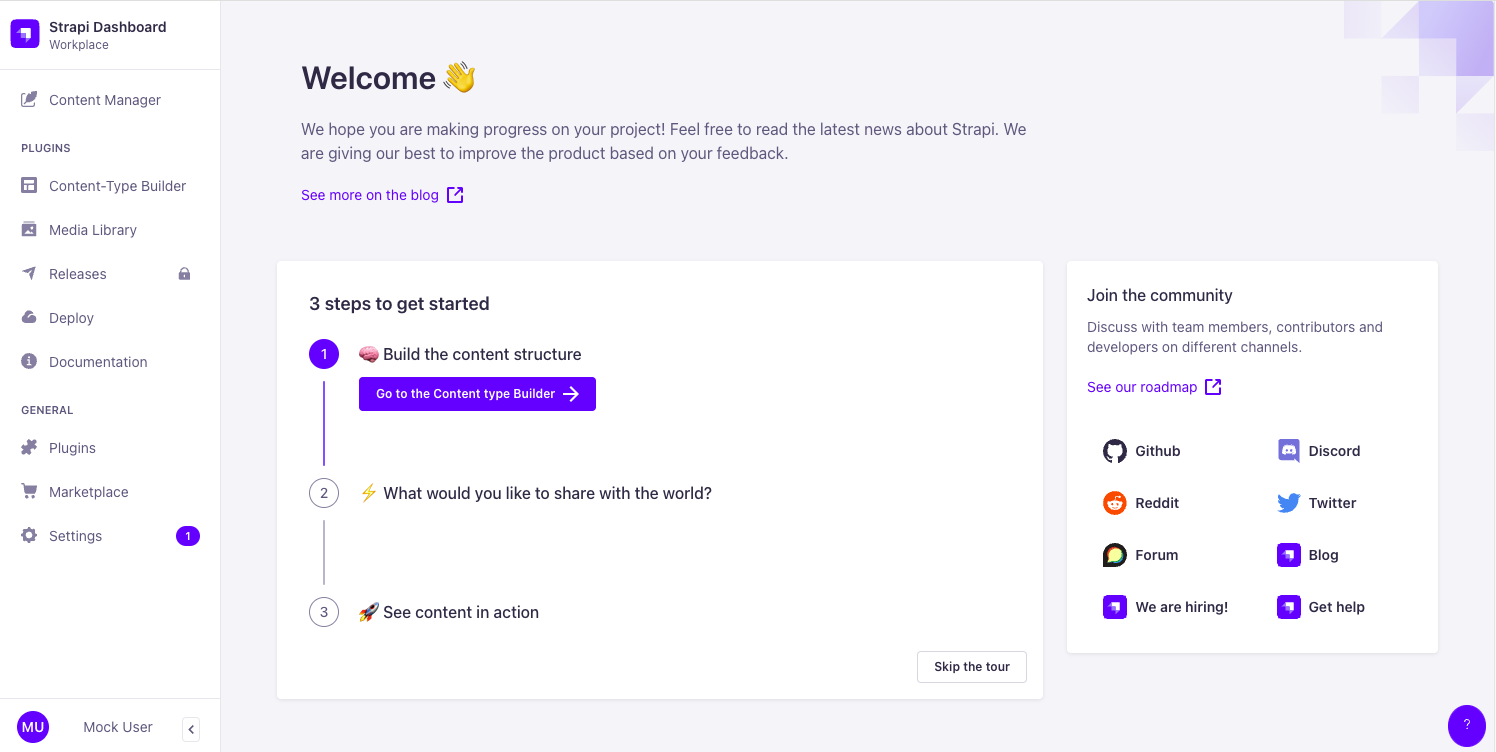
Navigate to “Settings” in the Panel on the left side
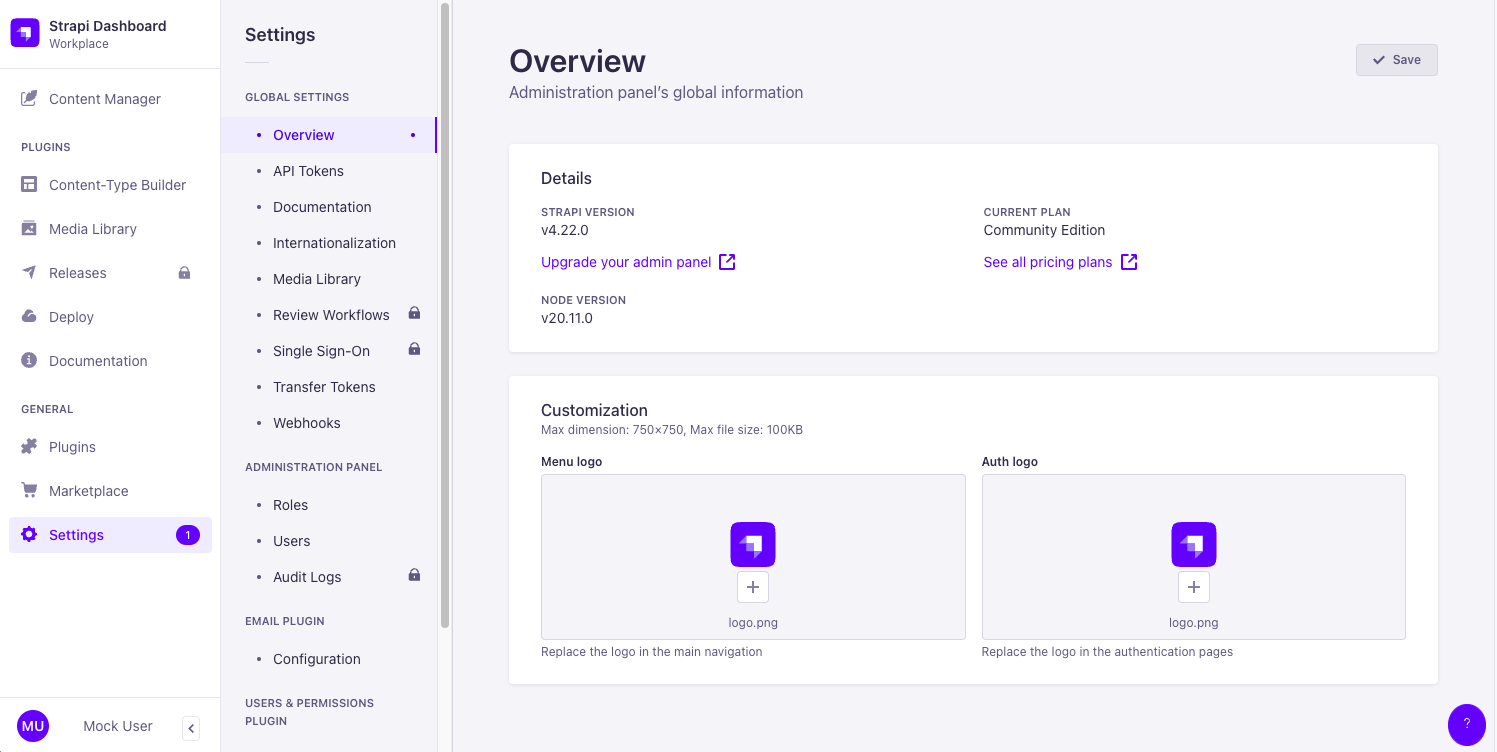
Navigate to “API Tokens” under “Global Settings”
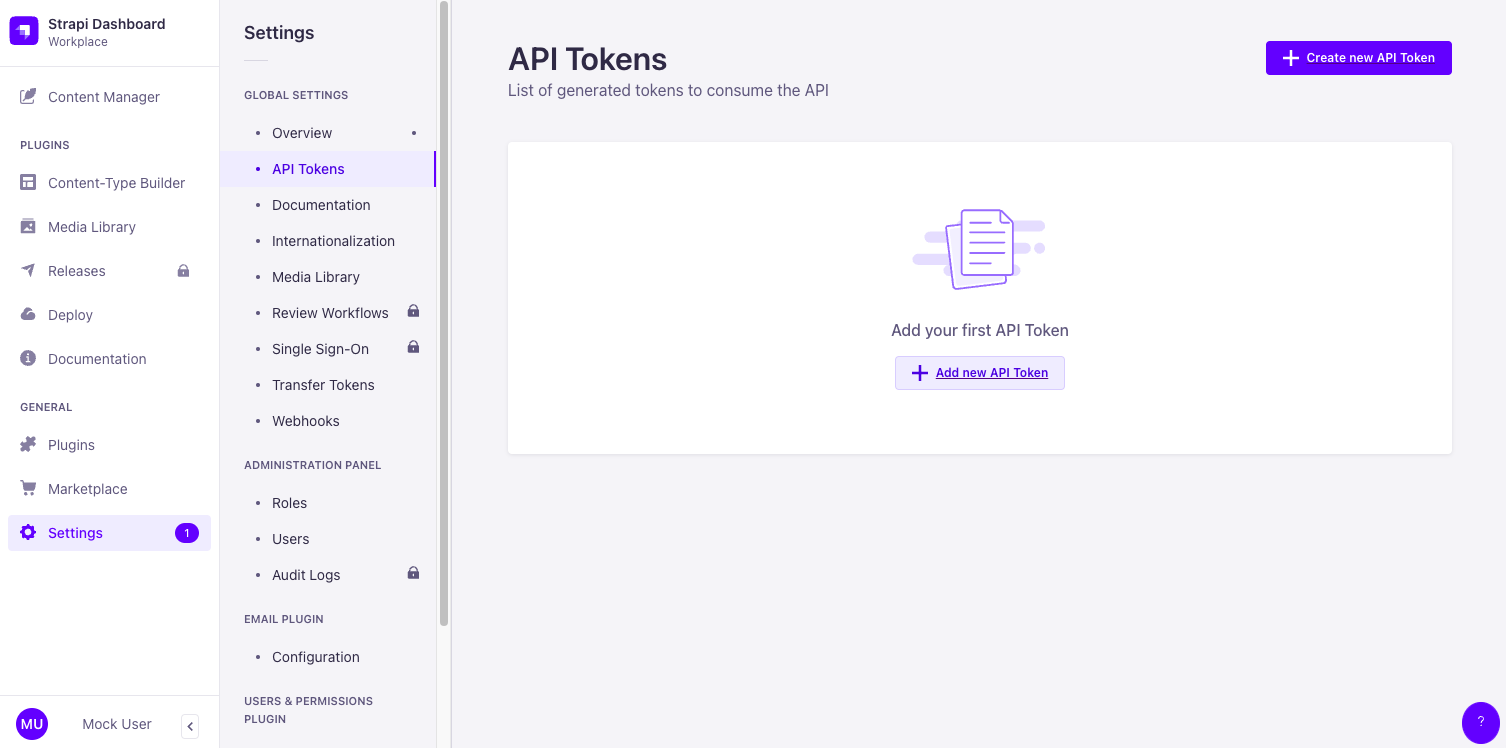
Click “Create new API Token” in the top right corner
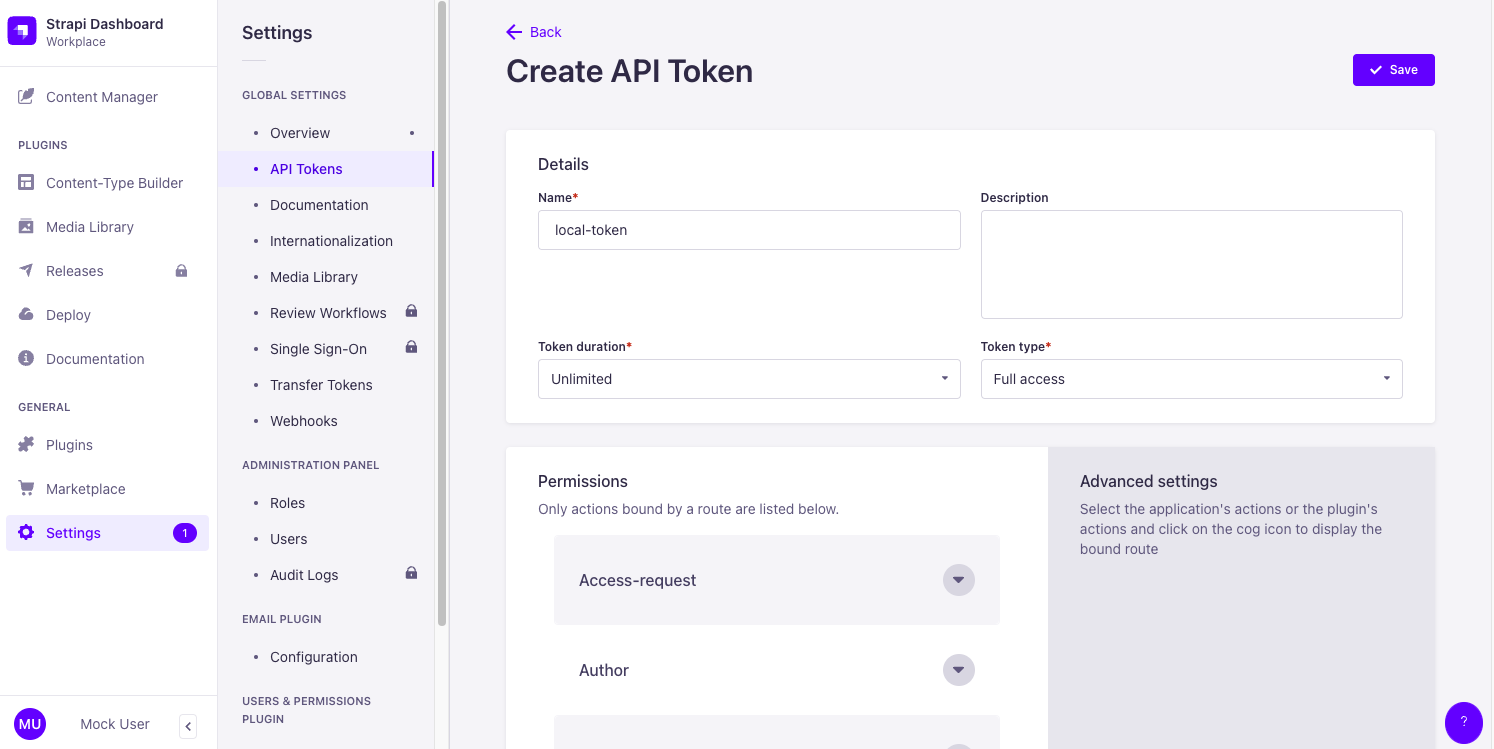
Fill in “Token duration” and “Token type” with the information above. For “Name”, you can choose any name you see fit. For this tutorial, I chose “local-token”
Click “Save” in the top right corner to create the token

Copy the token that was created for you. The Token in the screenshot above will not work for your local instance.
Navigate back to .docker.env in the frontend directory and paste into the file like so, replacing <your_token> with your token
STRAPI_API_URL=http://host.docker.internal:1337
STRAPI_ACCESS_TOKEN=<your_token>
Now all you have to do is restart the server
stop the containers by pressing control c in the terminal where it was running and then starting it back up again with
docker compose upYour application should now be running correctly!
Go into Docker Desktop, delete the odyssey_strapi-data volume, and rebuild
Delete the data.sql file in the initdb directory and the odyssey_strapi-data volume in Docker Desktop then rebuild.
Delete .next in the frontend directory and rebuild
This likely means you forgot to install the necessary dependencies. From both the frontend and the backend, delete the package-lock.json, node_modules, and yarn.lock files/directories if they exist. In the terminal (at the top level directory), run npm run setup
To contribute to Odyssey's source code:
- Create a new branch off of the
developbranch:git checkout -b feature/[description], where[description]is a concise name for the feature being implemented - Make your changes and commit them:
git commit -m 'Add new feature' - Push to the branch:
git push origin feature/[description] - Submit a pull request to the
developbranch
Sponsor: @MarkFontenot
This platform was built by Jay Sella (@jaysella), Bobby Palazzi (@bpalazzi512), Chase Houser (@chouser63), Gillian Palmer (@gpalmer27), Johan Almanzar (@JAlazer), Wesley Chapman (@chapman-w), Darius Saadat (@DSCoder555), William Gadala (@wjgadala), and Martin Hema (@martin0he).