Repository navigation
Basic Viewer Usage
This page will document how to use the full page viewer application. Most of the functionality we outline below is accessed in the dropdowns located in the app's upper left hand corner.
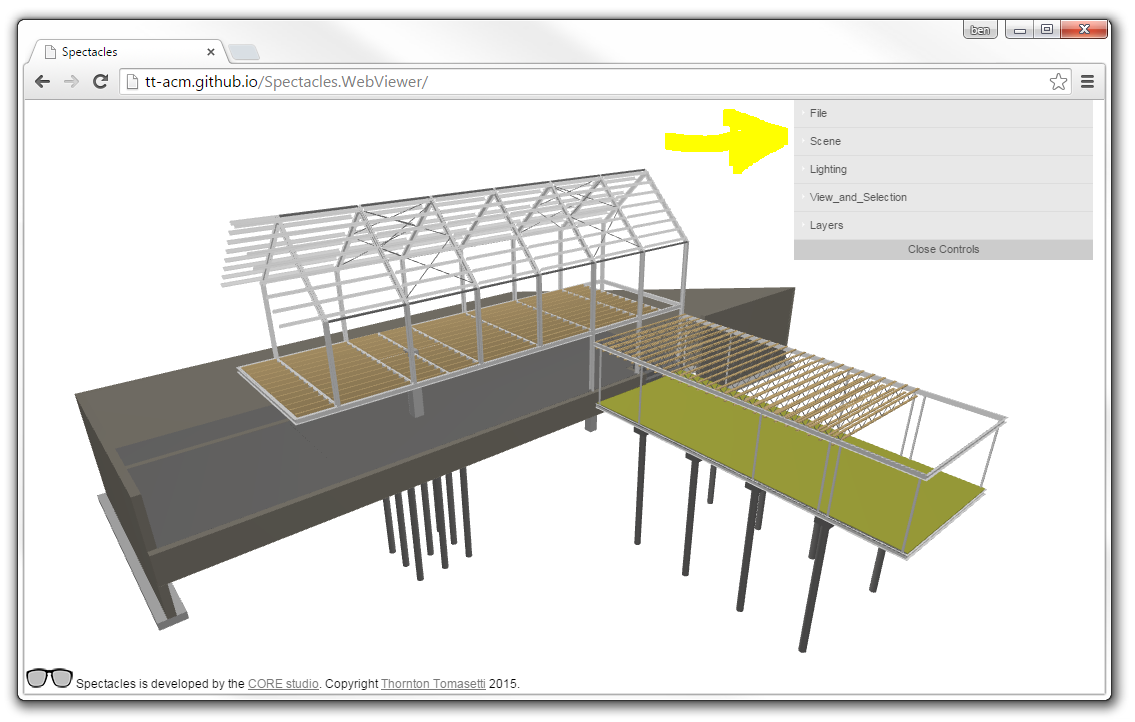
Navigation
Open Files
Scene Controls
Lighting
The Spectacles viewer uses the THREE.js OrbitControls controller to allow for intuitive navigation within the 3d model.
When using a mouse:
- click and drag to rotate
- right-click and drag to pan
- scroll to zoom
- click on an object to select it
When using a touch screen:
- single-finger drag to rotate
- triple-finger drag to pan
- pinch to zoom
- touch an object to select it
#Open Files

First things first - we need a Spectacles.json file to view. Get your hands on an exporter for either Grasshopper or Revit and export a .json file. Or download one from the /samples directory in this repo (make sure to download the raw file from github).
Once you have a .json file on your machine, fire up the viewer and press the File > Open Spectacles Files button. Then, select a file from your hard drive using the 'Choose File' button in the dialog box.

Spectacles can also open files that are hosted on the web. Because of security issues concerning json data, only certain hosts can serve .json files properly. Dropbox public files work, as do raw json files served from Github. To load a hosted file, paste it's URL into the files dialog, and press 'Open from URL'.
Use this control to set the background color of the scene.
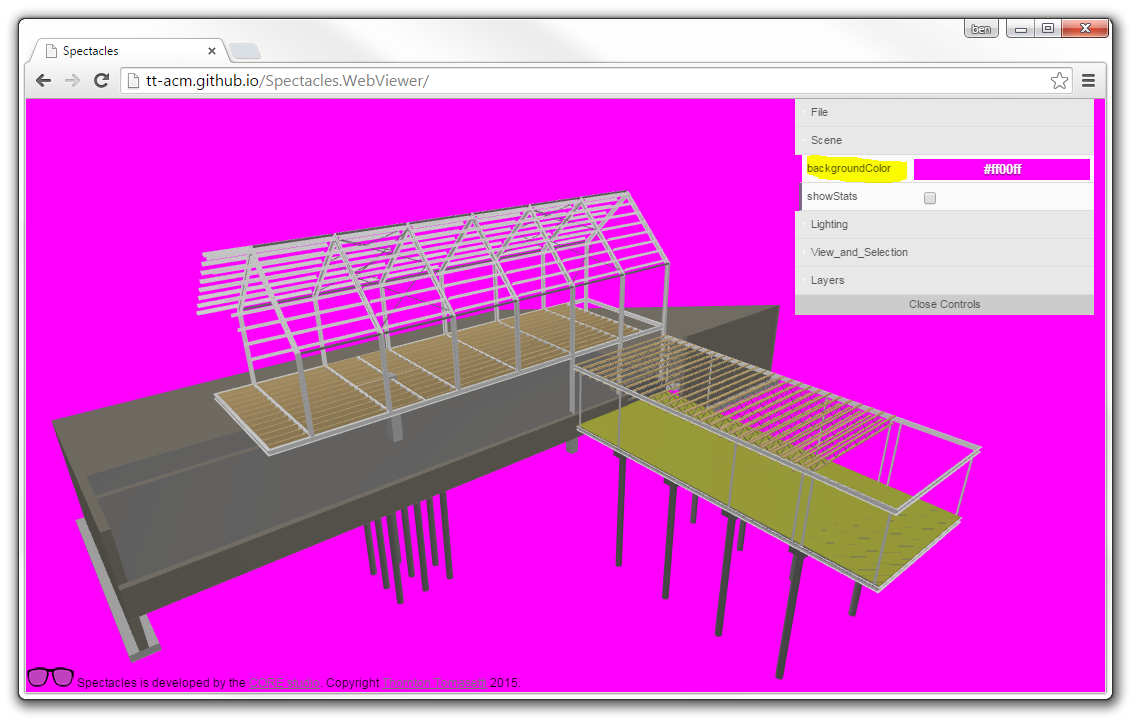
Toggle this setting to show the stats element in the lower left hand corner of the viewer. This shows how fast the model is currently running in the browser.


What THREE.js renders on the screen is computed using a camera, lights, geometries and materials. A detailed discussion of how this works is certainly beyond the scope of this wiki - please read up on threejs.org for more info. Suffice it to say that all scenes need some lights, and Spectacles includes a lighting rig that should work for most AEC applications.
This light affects all objects in the THREE.js scene globally. We set this to a darker grey by default.
These lights provide relief - without them, objects render completely flat.
This is still pretty unpolished, but when enabled, shadows are cast from a fixed light source. We are planning on providing a Azimuth / Altitude UI to move that source to simulate the sun. See issue #14.
Talk generally about selection and attribute display.
- Zoom Extents
- Zoom Selected
- Selected Object Color
- View
Talk generally about Layers.