If you're anything like me and are a complete novice when it comes to the Elixir ecosystem and Phoenix, you probably wager that using a proper debugger helps you make sense of the execution flow and interiorize concepts much better.
With this in mind, I thought I'd share my experience setting up a proper environment so one can debug any Phoenix project, making it much easier to make sense of everything! And great news: it's proper simple ☀️ !
- Boot up VSCode and install ElixirLS: Elixir support and debugger and Phoenix Framework.
- Restart VSCode
- Open any Phoenix-based project. Or create your own!
- As per Phoenix Framework's docs, add (or create under
.vscode) the following to your settings.json file:
"emmet.includeLanguages": {
  "phoenix-heex": "html"
}
- You should be sorted! 🎉
Further information
On first run, ElixirLS will run a project analysis and index everything. This might take some time. You can see the progress under Output in VSCode.
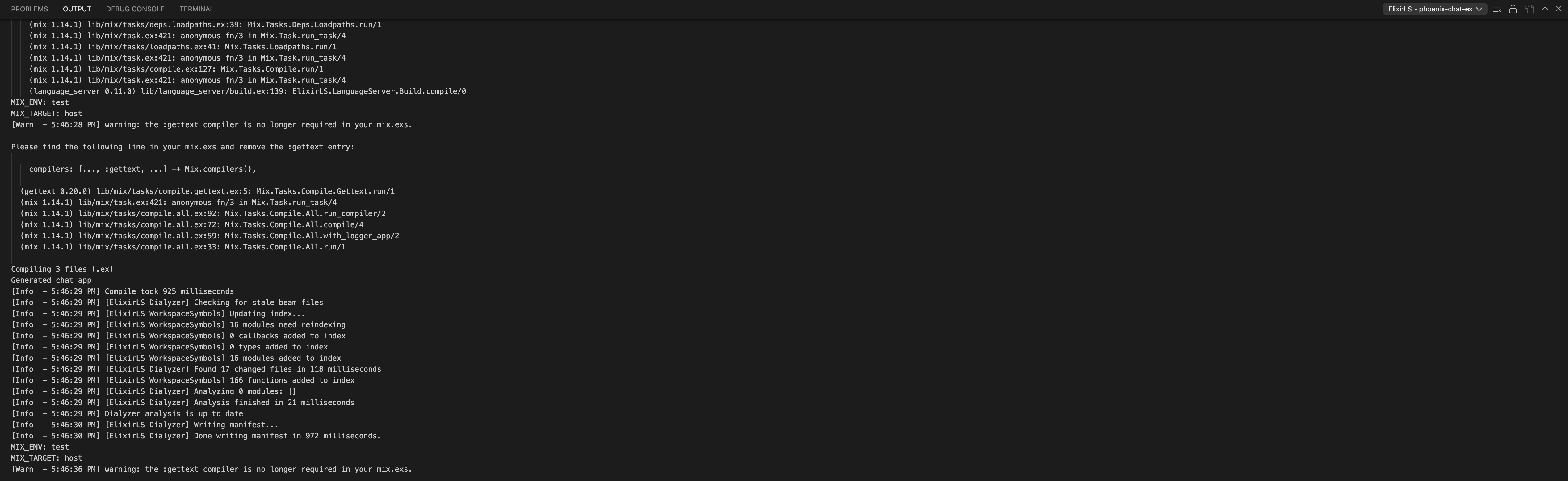
Sometimes, when 'go-to-reference' doesn't seem to work, it's probably because there was an error indexing (it's what happened to me!). Check the Output and choose ElixirLS in the right combobox and check the traces. Most of the times,deleting the created .elixir_ls folder and re-opening the project will force reindexing and solve the problem 😄 .
Hurray you can now debug!
Now it should be super easy to debug!
Simply go to the side panel and "create a launch.json file".

Now just make sure you have this same configuration and you're done!
{
    "version": "0.2.0",
    "configurations": [
        {
            "type": "mix_task",
            "name": "mix (Default task)",
            "request": "launch",
            "task": "phx.server",    // add this
            "projectDir": "${workspaceRoot}",
			"env": {
				"TEST_VAR": "foo"
			}
        },
        {
            "type": "mix_task",
            "name": "mix test",
            "request": "launch",
            "task": "test",
            "taskArgs": [
                "--trace"
            ],
            "startApps": true,
            "projectDir": "${workspaceRoot}",
            "requireFiles": [
                "test/**/test_helper.exs",
                "test/**/*_test.exs"
            ]
        }
    ]
}
Now you can you can press F5 (or Run > Start debugging) and start debugging! This is what it'll look like!

Happy debugging! 🎉 🎉
If you're anything like me and are a complete novice when it comes to the Elixir ecosystem and Phoenix, you probably wager that using a proper debugger helps you make sense of the execution flow and interiorize concepts much better.
With this in mind, I thought I'd share my experience setting up a proper environment so one can debug any Phoenix project, making it much easier to make sense of everything! And great news: it's proper simple ☀️ !
.vscode) the following to yoursettings.jsonfile:Further information
On first run, ElixirLS will run a project analysis and index everything. This might take some time. You can see the progress under

Outputin VSCode.Sometimes, when 'go-to-reference' doesn't seem to work, it's probably because there was an error indexing (it's what happened to me!). Check the
Outputand choose ElixirLS in the right combobox and check the traces. Most of the times,deleting the created.elixir_lsfolder and re-opening the project will force reindexing and solve the problem 😄 .Hurray you can now debug!
Now it should be super easy to debug!
Simply go to the side panel and "create a launch.json file".
Now just make sure you have this same configuration and you're done!
{ "version": "0.2.0", "configurations": [ { "type": "mix_task", "name": "mix (Default task)", "request": "launch", "task": "phx.server", // add this "projectDir": "${workspaceRoot}", "env": { "TEST_VAR": "foo" } }, { "type": "mix_task", "name": "mix test", "request": "launch", "task": "test", "taskArgs": [ "--trace" ], "startApps": true, "projectDir": "${workspaceRoot}", "requireFiles": [ "test/**/test_helper.exs", "test/**/*_test.exs" ] } ] }Now you can you can press
F5(orRun > Start debugging) and start debugging! This is what it'll look like!Happy debugging! 🎉 🎉