You will find below the instructions to set up you computer for Powercoders Web Development course.
Please read them carefully and execute all commands in the following order.
If you get stuck, don't hesitate to ask a teacher for help 🙋
Let's start 🚀
To be able to interact when we are not in the same physical room, we will be using Zoom, a video conferencing tool.
Go to zoom.us/download.
Under Zoom Client click the Download button.
Open the file you have just downloaded to install the app.
Open the Zoom app.
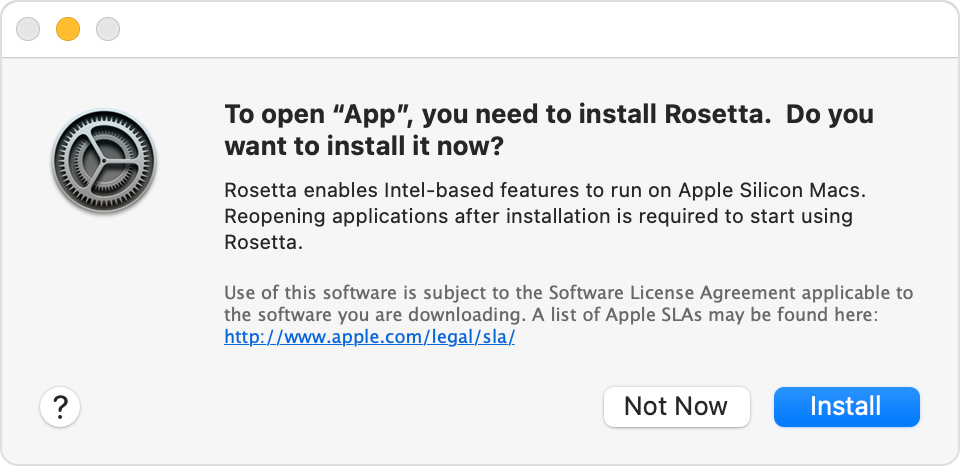
If you have a Mac with Apple silicon, you are asked to install Rosetta. Click Install, then enter your user name and password to allow installation to proceed.
If you already have a Zoom account, sign in using your credentials.
If not, click on the Sign Up Free link:

You will be redirected to Zoom's website to complete a form.
When it's done, go back to the Zoom app and sign in using your credentials.
You should then see a screen like this:

You can now close the Zoom app.
Have you signed up to GitHub? If not, do it right away.
👉 Upload a picture and put your name correctly on your GitHub account. This is important as we'll use an internal dashboard with your avatar. Please do this now, before you continue with this guide.

Clicking the little red cross in the top left corner of the application window on a Mac does not really quit it, it just closes an active window. To quit the application for real either press Cmd + Q when the application is active, or navigate to APP_NAME -> Quit in the menu bar.

During this setup you will be asked to quit and re-open applications multiple times, please make sure you do it properly 🙏
Open a new terminal, copy-paste the following command and hit Enter:
xcode-select --installIf you receive the following message, you can just skip this step and go to next step.
# command line tools are already installed, use "Software Update" to install updatesOtherwise, it will open a window asking you if you want to install some software: click on "Install" and wait.

✔️ If you see the message "The software was installed" then all good 👍
❌ If the command xcode-select --install fails try again: sometimes the Apple servers are overloaded.
❌ If you see the message "Xcode is not currently available from the Software Update server", you need to update the software update catalog:
sudo softwareupdate --clear-catalogOnce this is done, you can try to install again.
Homebrew is a package manager: it's a software used to install other software from the command line. Let's install it!
Open a terminal and run:
/bin/bash -c "$(curl -fsSL https://raw.githubusercontent.com/Homebrew/install/HEAD/install.sh)"This will ask for your confirmation (hit Enter) and your macOS user account password (the one you use to log in when you reboot your Macbook).
Enter.
Next steps section to add Homebrew to your PATH:

# ⚠️ Only execute these commands if you saw this warning ☝
echo 'eval "$(/opt/homebrew/bin/brew shellenv)"' >> ~/.zprofile
eval "$(/opt/homebrew/bin/brew shellenv)"
If you already have Homebrew, it will tell you so, that's fine, go on.
Then install some useful software:
brew updateIf you get a /usr/local must be writable error, just run this:
sudo chown -R $USER:admin /usr/local
brew update
Proceed running the following in the terminal (you can copy / paste all the lines at once).
brew upgrade git || brew install git
brew upgrade gh || brew install gh
brew upgrade wget || brew install wget
brew upgrade imagemagick || brew install imagemagick
brew upgrade jq || brew install jq
brew upgrade openssl || brew install opensslLet's install Visual Studio Code text editor.
Copy (Cmd + C) the command below then paste it in your terminal (Cmd + V):
brew install --cask visual-studio-codeThen launch VS Code by running the following command in your terminal:
code✔️ If a VS Code window has just opened, you're good to go 👍
❌ Otherwise, please contact a teacher
Let's install some useful extensions to VS Code.
Copy-paste the following commands in your terminal:
code --install-extension ms-vscode.sublime-keybindings
code --install-extension emmanuelbeziat.vscode-great-icons
code --install-extension github.github-vscode-theme
code --install-extension MS-vsliveshare.vsliveshare
code --install-extension dbaeumer.vscode-eslint
code --install-extension Rubymaniac.vscode-paste-and-indent
code --install-extension alexcvzz.vscode-sqlite
Here is a list of the extensions you are installing:
- Sublime Text Keymap and Settings Importer
- VSCode Great Icons
- Live Share
- ESLint
- Paste and Indent
- SQLite
Visual Studio Live Share is a VS Code extension which allows you to share the code in your text editor for debugging and pair-programming: let's set it up!
Launch VS Code from your terminal by typing code and pressing Enter.
Click on the little arrow at the bottom of the left bar 👇

- Click on the "Share" button, then on "GitHub (Sign in using GitHub account)".
- A popup appears asking you to sign in with GitHub: click on "Allow".
- You are redirected to a GitHub page in you browser asking you to authorize Visual Studio Code: click on "Continue" then "Authorize github".
- VS Code may display additional pop-ups: close them by clicking "OK".
That's it, you're good to go!
Launch a terminal, click on Terminal > Preferences and set the "Pro" theme as default profile.

In Window tab, set also your Window Size to Columns: 200, Rows: 50
Quit and restart your terminal: it should now have a nice black background, easier on the eyes.
Let's install the zsh plugin Oh My Zsh.
In a terminal execute the following command:
sh -c "$(curl -fsSL https://raw.github.com/ohmyzsh/ohmyzsh/master/tools/install.sh)"If asked "Do you want to change your default shell to zsh?", press Y
At the end your terminal should look like this:

✔️ If it does, you can continue 👍
❌ Otherwise, please ask for a teacher
CLI is the acronym of Command-line Interface.
In this section, we will use GitHub CLI to interact with GitHub directly from the terminal.
It should already be installed on your computer from the previous commands.
First in order to login, copy-paste the following command in your terminal:
email
gh auth login -s 'user:email' -wgh will ask you few questions:
What is your preferred protocol for Git operations? With the arrows, choose SSH and press Enter. SSH is a protocol to log in using SSH keys instead of the well known username/password pair.
Generate a new SSH key to add to your GitHub account? Press Enter to ask gh to generate the SSH keys for you.
If you already have SSH keys, you will see instead Upload your SSH public key to your GitHub account? With the arrows, select your public key file path and press Enter.
Enter a passphrase for your new SSH key (Optional). Type something you want and that you'll remember. It's a password to protect your private key stored on your hard drive. Then press Enter.
Enter.
You will then get the following output:
! First copy your one-time code: 0EF9-D015
- Press Enter to open github.com in your browser...
Select and copy the code (0EF9-D015 in the example), then press Enter.
Your browser will open and ask you to authorize GitHub CLI to use your GitHub account. Accept and wait a bit.
Come back to the terminal, press Enter again, and that's it.
To check that you are properly connected, type:
gh auth status✔️ If you get Logged in to github.com as <YOUR USERNAME> , then all good 👍
❌ If not, contact a teacher.
Node.js is a JavaScript runtime to execute JavaScript code in the terminal. Let's install it with nvm, a version manager for Node.js.
In a terminal, execute the following commands:
curl -o- https://raw.githubusercontent.com/nvm-sh/nvm/v0.39.1/install.sh | zsh
exec zsh
Then run the following command:
nvm -vYou should see a version. If not, ask a teacher.
Now let's install node:
nvm install 16.15.1When the installation is finished, run:
node -vIf you see v16.15.1, the installation succeeded ✔️ You can then run:
nvm cache clear❌ If not, contact a teacher
yarn is a package manager to install JavaScript libraries. Let's install it:
In a terminal, run the following commands:
npm install --global yarn
exec zsh
Then run the following command:
yarn -v✔️ If you see a version, you're good 👍
❌ If not, ask for a teacher
In a few weeks, we'll talk about databases and SQL. SQLite is a database engine used to execute SQL queries on single-file databases. Let's install it:
In a terminal, execute the following commands:
brew install sqliteThen run the following command:
sqlite3 -version✔️ If you see a version, you're good 👍
❌ If not, ask for a teacher
Sometimes, SQLite is not enough and we will need a more advanced tool called PostgreSQL, an open-source robust and production-ready database system.
Let's install it now.
Run the following commands:
brew install postgresql
brew services start postgresql
Once you've done that, let's check that it worked:
psql -d postgresYou should you see a new prompt like this one 👇
psql (14.4)
Type "help" for help.

postgres=#
✔️ If this is the case, type \q then Enter to quit this prompt. You're good to go 👍
❌ If not, please ask for a teacher
Great you almost completed the setup! Now it's time to sign-up into your dashboard.
Open this webpage Dashboard, you'll see a central white button. Click on sign in with github

After that will be redirected to your personal page and you should se your avatar on the right.
In this page you'll be able to see your daily progress in the exercises.
It's our platform to see all the content of bootcamp and videos of the lectures. The link will be shared on Slack at the end of the day :)
Slack is a communcation platform pretty popular in the tech industry.
Download the Slack app and install it.
Launch the app and sign in to powercoders organization.
Make sure you upload a profile picture :camera_with_flash:
The idea is that you'll have Slack open all day, so that you can share useful links / ask for help / decide where to go to lunch / etc.
To ensure that everything is working fine for video calls, let's test your camera and microphone:
- Open the Slack app
- In any channel message bar type
/call --testand pressEnter - Click on the "Start test" green button

✔️ When the test is finished, you should see green "Succeed" messages at least for your microphone and camera. 👍
❌ If not, contact a teacher.
You can also install Slack app on your phone and sign in powercoders!
It is mandatory that you protect your session behind a password.If it is not already the case, go to > System Preferences > Users & Groups and change your account password. You should also go to > System Preferences > Security > General. You should require a password 5 seconds after sleep or screen saver begins.
You can also go to > System Preferences > Mission Control and click on the Hot Corners button at the bottom left. Choose for the bottom right corner to start the screen saver. That way, when you leave your desk, you can quickly lock you screen by putting your mouse in the bottom right corner. 5 seconds after, your Macbook will be locked and will ask for a password to get back on the session.
As you become a programmer, you'll understand that leaving the keyboard takes a lot of time, so you'll want to minimize using the trackpad or the mouse. Here are a few tricks on macOS to help you do that.
Go to > System Preferences > Keyboard. Set Key Repeat to the fastest position (to the right) and Delay Until Repeat to the shortest position (to the right).
Read this script and cherry-pick some stuff you think will suit you. For instance, you can type in the terminal this one:
# Expanding the save panel by default
defaults write NSGlobalDomain NSNavPanelExpandedStateForSaveMode -bool true
defaults write NSGlobalDomain PMPrintingExpandedStateForPrint -bool true
defaults write NSGlobalDomain PMPrintingExpandedStateForPrint2 -bool true

# Save screenshots to the Desktop (or elsewhere)
defaults write com.apple.screencapture location "${HOME}/Desktop"

# etc..You are going to use most of the apps you've installed today really often. Let's pin them to your dock so that they are just one click away!
To pin an app to your dock, launch the app, right-click on the icon in the taskbar to bring up the context menu and choose "Options" then "Keep in Dock".
You must pin:
- Your terminal
- Your file explorer
- VS Code
- Your Internet browser
- Slack
- Zoom
Your computer is now all set for Powercoders Web Development course 💪 👏
Enjoy the bootcamp, you will nail it 🚀